


Statistics Reports for Contractor and Service Companies
There are different statistics reports that service companies can extract from in4mo. Learn more about the available reports in this guide.
Overview
There are many different statistics reports in in4mo, which provide help for follow-up purposes.
Reports are generated based on your settings and are found under Company admin -> Reports. On this page you will find the different reports under different categories. When you have found a report you wish to download, simply click on the wanted report, then select from what time you want to download the report. Note that this page, and hence all reports found on the page, is only available for Contractor customers.
All reports mentioned in this document will be downloaded as a .csv file. The character encoding is UTF-8. The files can be opened in Microsoft Excel or other software to be analysed.
Reports can be generated at a weekly or a monthly basis, and you can choose which interval works best for you. Some reports can also be generated on a daily basis in addition to monthly or weekly. You can also choose for them not to be generated at all. The availability of some reports might also depend on which functionalities are in use in the portal.
The different reports that are available will be explained in more detail later in this document, here’s a list of the available reports:
- iCC Task Report (Contractor Pro only)
- WI report (Contractor Pro only)
- Partner statistics (Contractor Pro and Lite only)
- Office availability report (Contractor Pro only)
- Remote Video Services Report (Contractor Pro only)
- Partner list
- Member list
Opening .csv Files in Microsoft Excel
There are two different approaches to opening the .csv files in Microsoft Excel. They can be opened directly in Excel after the download is completed, or they can be saved on your computer, then opened through Excel.
Opening a file saved on computer:
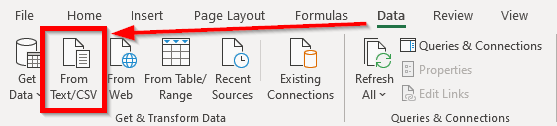
Open Microsoft Excel, then click on ‘Data’. You will see a button called ‘From Text/CSV’. Click this button, browse to where you have saved the downloaded file, select the correct file, and click ‘Import’.
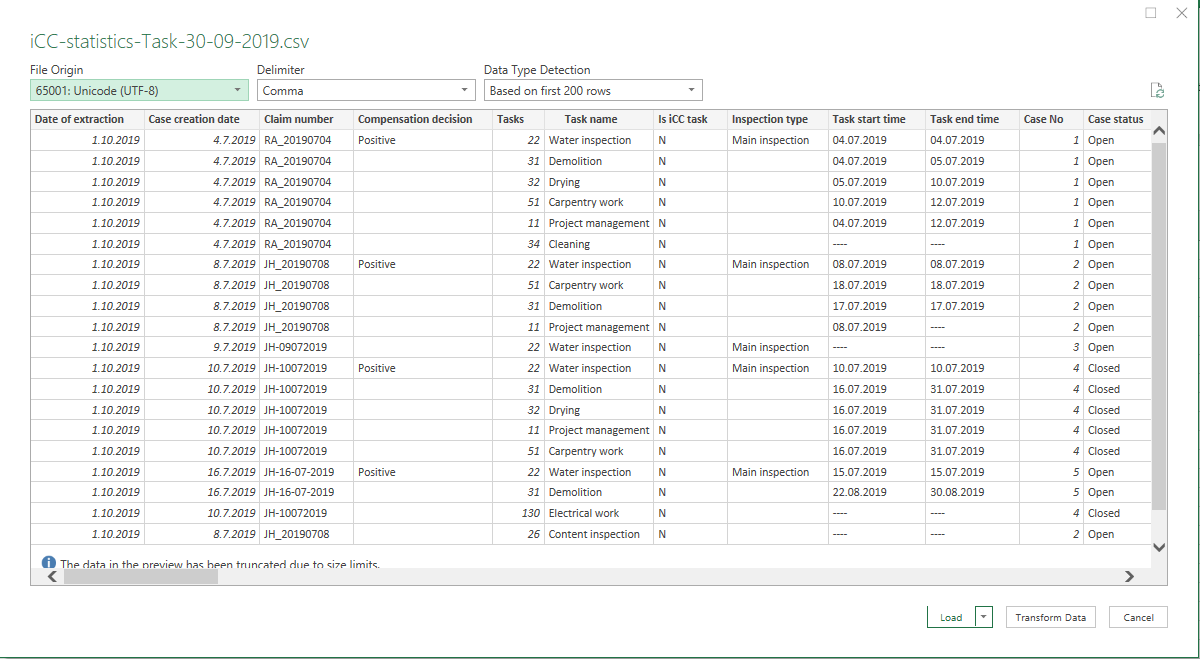
When Excel has loaded the file, a window will pop up where you check that the file origin is in Unicode (UTF-8), and that the delimiter is set as ‘Comma’. The table below is a preview of how the file will look when loaded. When ready, click on ‘Load’. The file is now ready for use.
Opening directly after completed download:
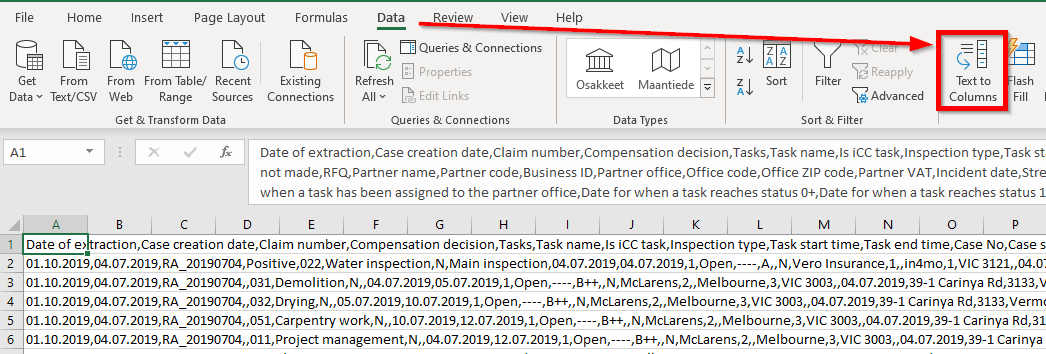
If you have chosen to open the downloaded file directly, you may find that all content is found in column A of the Excel file. To fix this, click ‘Data’ from the top menu in Excel, then click ‘Text to Columns’.
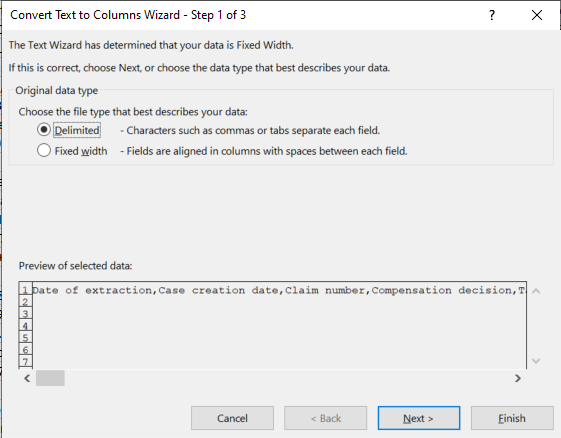
A new window will open. Under ‘Original data type’, select the first option (Delimited), then proceed by clicking ‘Next’.
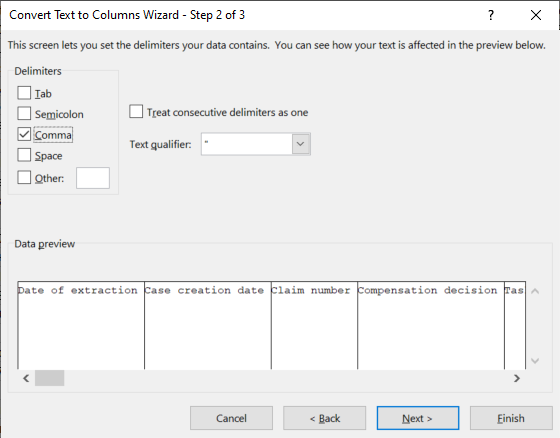
In step 2, select ‘Comma’ as the delimiter, then click ‘Next’ to proceed.
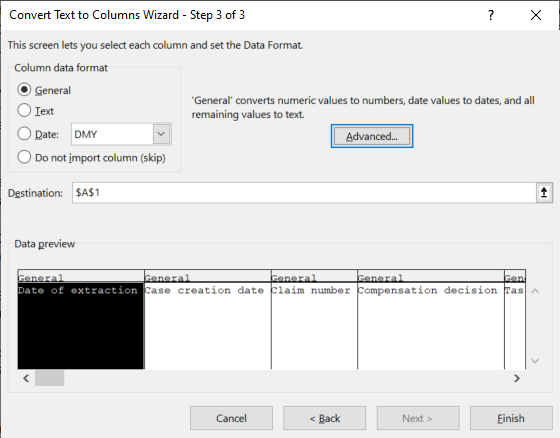
In the third and final step, select ‘General’ as the column data format, then click ‘Finish’. The file is now ready for use.
Report Schedule Configuration (Contractor only)
The configurations for the reports are found in the same place as where you access the reports: Company admin -> Reports. Only users with authority level 6 has access to this page. The Report schedule configurations are found at the bottom of the page.
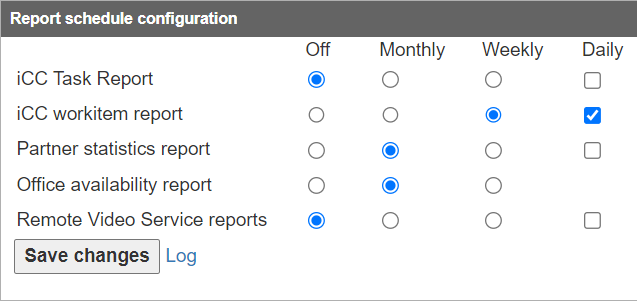
Note that the first two reports seen in the screenshot above can only be set up by in4mo, whereas you will only see the other reports. Contact in4mo to set up your wanted interval for these reports. In time it will be made possible for you to select yourself.
For each report you can decide whether the report should be generated on a monthly or a weekly basis, or that it should not be generated at all. Reports generated on a monthly basis are generated at the end of each month and are available for download on the first day of each month. Reports generated on a weekly basis are generated Sunday night each week and are available for download on Monday morning. Note that for the reports for which daily reporting is available, this daily report comes in addition to the monthly/weekly reports.
Whenever you change a setting the changes will come into effect immediately, meaning that if you change the setting for a specific report to be generated on a weekly basis, it will be generated starting from the next Sunday night, and likewise if you change the setting to monthly, the report will be generated at the end of the current month.
Whenever you make changes, remember to click ‘Save changes’ at the bottom.
Define Separator for csv Files (Contractor only)
It is possible to define the separator used for .csv files generated in in4mo. Changing the separator will affect all reports, as well as member and partner lists and extracts from dashboard and case list.
Defining the separator is done in Company admin -> Reports and will be in use for all files generated after the change.

The default setting for the separator is comma (,), meaning that the functions will not change until a new separator is defined manually.
Available Reports
A list of the available reports was shown in the Overview section. Below you will find more information about each report. Note that some of the reports are only available to customers of in4mo Contractor, whereas the partner and member lists are available to all.
iCC Task Report (Contractor Pro only)
The task report contains information about every single task in a case. Each task has its own row with information showing the situation at the moment the report was generated. How long a period is tracked in this report may vary between different portals. The report only includes information from portals in which iCC is activated.
| Column | Field Name | Description |
| A | Date of extraction | The date the report is generated |
| B | Company | The name of the company whose case it is, either the name of an insurance company or the text ‘Own case’ if it’s an own case |
| C | Case creation date | The date the case was created |
| D | Claim number | The identifier defined by your company |
| E | Compensation decision | Positive or Negative if the compensation decision (insurance cases) or case continuation decision (own cases) is made at the time of report generation, otherwise blank |
| F | Tasks | Task type ID |
| G | Task name | The name of the task type |
| H | Is iCC task | Indicates if the task is currently registered as an iCC task, meaning having a work plan |
| I | Inspection type | If main inspection task it is indicated, otherwise empty |
| J | Task start time | The planned start date for the task |
| K | Task end time | The planned end date for the task |
| L | Case No | The unique ID of the case created by in4mo |
| M | Case status | The status at generation of the report: Open, Closed, Aborted or Removed |
| N | Closing date for case | Date when the case was closed, if closed |
| O | Status | The status of the task at generation of the report |
| P | Main inspection reached status 4 but compensation decision is not made | If main inspection is completed but compensation decision is not made, the field will have a value |
| Q | RFQ | Y if the task is or have been under RFQ otherwise N |
| R | Partner name | The name of the partner assigned to the task at generation of the report |
| S | Partner code | The unique code of the partner assigned to the task at generation of the report |
| T | Business ID | The business ID defined for the partner office assigned to the task at generation of the report |
| U | Partner office | The name of the partner office assigned to the task at generation of the report |
| V | Office code | The unique code of the partner office assigned to the task at generation of the report |
| W | Office ZIP code | The zip code of the partner office assigned to the task at generation of the report |
| X | Partner VAT | The VAT number defined for the partner office assigned to the task at generation of the report |
| Y | Incident date | The registered date of the incident |
| Z | Street address | The street and number of the registered damage address |
| AA | ZIP code | The zip code of the registered damage address |
| AB | City | The city of the registered damage address |
| AC | Case creator | Name and email address of the user that is registered as case creator |
| AD | Case handler | Name and email address of the user that is registered as case handler at generation of the report |
| AE | Date/time for when a task has been assigned to the partner office | Time stamp for the current assignment of the task at generation of report |
| AF | Date for when a task reaches status 0+ | Time stamp for when the task has been viewed by the current assignment of the task at generation of report |
| AG | Date for when a task reaches status 1 | Time stamp for the current assignment of the task at generation of report |
| AH | Date for when a task reaches status B | Time stamp showing when the task reached status B |
| AI | Date for when a task reaches status B++ | Time stamp showing when the task reached status B++ |
| AJ | Date for when a task reaches status 3 for the first time | Time stamp showing when the task reached status 3 for the first time |
| AK | Date for when a task reaches status 4 for the first time | Time stamp showing when the task reached status 4 for the first time |
| AL | Task rejected | Yes/no depending on whether the task have been removed or not |
| AM | Date for last reported task | The date for when the task was last time included in a csv report |
| AN | Office distance | The distance between the assigned office and the damage site |
| AO | Date for when a task reaches status A for the first time | Time stamp showing when the task reached status A for the first time |
| AP | Date for when a report was first uploaded for task | Time stamp showing when the report for the task was uploaded for the first time |
| AQ | Report filled on web | Shows whether the report was filled out from the web portal or not. Shows Y if filled out from the web portal, otherwise it shows N |
| AR | Task id | The unique ID of the task, created by in4mo |
| AS | Case id | The unique ID of the case, created by in4mo |
| AT | Extra task | Shows whether the task is an extra task or not. Shows Y if the task is an extra task, otherwise it shows N |
| AU | Estimated Time in minutes | Shows the estimated time for completing the task. The time estimate shown is the total estimated for all work items added for the task, as seen under Workplan. |
| AV | Assigned to subcontractor | Y or N depending on the activation of Subcontractor Extra for the specific task |
Work Item Report (Contractor Pro only)
The work item report lists all work items which have been added or edited in in4mo Cost Calculation (iCC) during the last ten months, and includes information about amounts, costs and materials.
The columns in the report are:
| Column | Field Name | Description |
| A | Insurance company | Name of the insurance company, or ‘Own case’ if not an insurance case |
| B | Date of extraction | The date the report is generated |
| C | Case creation date | The date the case was created |
| D | Claim number | The identifier defined by insurance company |
| E | WI Amount | The amount of the work item |
| F | WI Unit | The work item unit, e.g. m, m2, EUR, Hours |
| G | Task name | The name of the task under which the work item is located, cell is blank if the work item is not tied to a task |
| H | Room | The name of the room. Shows ‘System’ for travel and admin costs |
| I | Structure | The name of the structure. Shows ‘System’ for travel and admin costs |
| J | WI ID | Shows the ID of the specific work item, cell is blank for travel and admin costs. There can be several items in a workplan with the same WI ID. |
| K | WI Name | The name of the work item |
| L | Closing date for case | Shows the date that the case was closed. If the case has not been closed yet, it will show —- |
| M | RFQ | Shows whether the task was assigned through RFQ. Shows Y if assigned through RFQ, otherwise N |
| N | Partner name | The name of the partner assigned to the task, blank if the task has not been assigned |
| O | Partner code | The unique code of the partner |
| P | Partner office | The name of the assigned office |
| Q | Office code | The unique code of the partner office |
| R | Partner VAT | The VAT number defined for the partner office assigned to the task at generation of the report |
| S | Business ID | The business ID defined for the partner office |
| T | Incident date | Shows the incident date for the case |
| U | Damage address | Shows the address of the damage site |
| V | Case creator | Name and address of the user who created the case |
| W | Case handler | Name and address of the case handler |
| X | Case No | The unique ID of the case created by in4mo |
| Y | Approved budget (no materials) | Shows the sum of the approved budget without material costs |
| Z | Superseded | Shows whether the work item has been superseded by a new item. Shows Y if it has been superseded, otherwise N |
| AA | Approved budget Material(own) | Shows the sum of the approved material costs |
| AB | Status white, budget excl. materials, not sent for approval | Shows the WI budget without materials that’s in a draft state, i.e. work items displayed in white under Cost Control |
| AC | Status white, partners own materials, not sent for approval | Shows the WI material budget that’s in a draft state, i.e. work items displayed in white under Cost Control |
| AD | Status yellow, budget excl. materials, not approved | Shows the WI budget without materials that’s been sent for approval, i.e. work items displayed in yellow under Cost Control |
| AE | Status yellow, partners own material, not approve | Shows the WI material budget that’s been sent for approval, i.e. work items displayed in yellow under Cost Control |
| AF | Status red, budget excl. material, rejected | Shows the WI budget without materials that’s been rejected, i.e. work items displayed in red under Cost Control |
| AG | Status red, partners own material, rejected | Shows the WI material budget that’s been rejected, i.e. work items displayed in red under Cost Control |
| AH | Date for last reported work-item | The date of generation of the last WI csv the specific WI was included in |
| AI | Username for user who added WI | The username of the user who added the work item |
| AJ | Email for user who added WI | The email address of the user who added the work item |
| AK | Username for user who last updated WI | The username of the user who last edited the work item |
| AL | Email for user who last updated WI | The email address of the user who last edited the work item |
| AM | Material name | Shows the name of the selected material. If no material has been selected, this cell will be blank |
| AN | Material id | The ID of a specific material |
| AO | Material type | Shows the type of the material added, e.g. standard material, partner price, supplier price, custom material etc. |
| AP | Supplier name | Shows the name of the material supplier, if the selected material is from an integrated material supplier |
| AQ | Work item notes | Shows the note added in the notes field for the work item, if a note has been added |
| AR | Task id | The unique ID of the task, created by in4mo. Shows ‘0’ for work items not directly tied to a task, such as admin and travel costs |
| AS | Case id | The unique ID of the case, created by in4mo |
| AT | Planitem id | The unique ID of the work item. There can only be one WI with this ID. |
| AU | Extra task | Shows whether the task is an extra task, in which case it will be marked with a ‘Y’, otherwise marked with an ‘N’ |
| AV | WI last update | Shows the date and time when the work item was last updated |
| AW | Work number | Shows the work number the assigned partner has defined for the task, if any, otherwise this cell will be blank |
| AX | Deleted | Shows whether the work item has been deleted, in which case it will be marked with a ‘Y’, otherwise marked with an ‘N’ |
| AY | Case status | The status at generation of the report: Open, Closed, Aborted or Removed. |
| AZ | Previous PlanitemID | This field will be populated if an approved work item has been updated and refers to the item that was updated, e.g. the last grey item in the cost control page |
| BA | WI is moved to customer | Shows if the work item has been allocated to the customer, in which case it will be marked with a ‘Y’, otherwise it will be marked with a ‘N’ |
| BB | WI is moved to Customer’s craftsman | Shows if the work item has been allocated to the customer’s craftsman, in which case it will be marked with ‘Y’, otherwise it will show ‘N’ |
Partner Statistics Report (Contractor Lite and Pro only)
The partner statistics report provides a detailed overview of your company’s work, as well as other useful information about the tasks during the period.
The report contains a row for each specific action for a task done by an office during the period. A task will remain in the report even if the task is cancelled, the status for the task is revoked or the whole case has been aborted. This means that the same action could be displayed on more than one row, although with different timestamps.
The report contains information about which office has done what action (name and code), as well as in which case, in which task, and for which insurance company. If the task is an extra task, this will be marked with a 1 under the ‘Extra tasks’ column.
Some columns are displayed in minutes, whereas others are marked with a 1.
Fields in the report:
| Column | Field Name | Description |
| A | Time stamp | Time stamp for case action |
| B | Insurance company | The name of the company whose case it is; either name of an insurance company, or ‘local’ for own cases |
| C | Partner code | The unique ID for the partner |
| D | Business ID | The business ID defined for the partner |
| E | Town | The town in which the office is located |
| F | Zip code | The ZIP code for the office |
| G | Partner | The name of the partner |
| H | Office code | The unique code of the partner office |
| I | Office | The name of the office |
| J | Responsible | The name of the person responsible for the task |
| K | Case No | Unique ID of the case in in4mo |
| L | Case ID | The identifier defined by insurance company |
| M | Task | Shows which task the information on the row is referring to |
| N | Extra tasks | Shows whether the task is an extra task or not. Marked with 1 if the task is an extra task, blank if not |
| O | Status C – 0 | Shows how many minutes it took from the task was created until it has been assigned to an office |
| P | Status 0 – 0+ | Shows how many minutes it took from the task was assigned to an office until the it was opened |
| Q | Status 0+ – 1 | Shows how many minutes it took from the task was opened until it was assigned to a responsible |
| R | Status 1 – 2 | Shows how many minutes it took from the task was assigned to a responsible until a start and end time was added for the task |
| S | Status 0 – 2 | Shows how many minutes it took from task assignment until a start time for the task has been set |
| T | Status 3 – 4 | Shows how many minutes it took from when work on the task was started (status 3) until it was marked as completed |
| U | Delay in start | Shows how many minutes delayed the task was marked as started, compared to the defined start time |
| V | Status 4-Uploaded report | Shows how many minutes it took from the task was marked as ready (status 4) until the report was uploaded |
| W | Task started | Shows 1 if the task has been marked as started (status 3) |
| X | Task finished | Shows 1 if the task has been marked as started (status 4) |
| Y | Task approved | Shows 1 if the task has been marked as approved (status A) |
| Z | Date for when a task reaches status B | Timestamp for when the task first reached status B |
Office Availability Report (Contractor Pro only)
The partner availability report shows all changes made in the availability of offices during the period. Each change in availability for an office generates a row in the report, which contains columns showing timestamps, information about the partner and the office, as well as showing what was the availability before the change, and what change was made.
Fields in the report:
| Column | Field Name | Description |
| A | Time stamp | Time stamp for when the change in office availability was made |
| B | Insurance company | Shows the name of the insurance company for whom the availability was changed, or ‘Own cases’ if the change applies to own cases. Could also show ‘All companies’ if the change applies to all connected companies. |
| C | Partner name | The name of the partner the office is part of |
| D | Partner ID | The unique ID for the partner |
| E | Office name | The name of the office whose availability status has been changed |
| F | Office ID | The unique ID for the partner office |
| G | Office address | The address where the office is located |
| H | Office ZIP | The zip code of the partner office |
| I | Office City | The city or postal area in which the office is located |
| J | Old availability status | Shows what the availability status for the office was prior to the change |
| K | New availability status | Shows what the availability status for the office is after the change was made |
Remote Video Service Report (Contractor Pro only)
The iRV report includes all Remote Video events that have happened during the period since the last generation of the report. If the report is generated on a monthly basis, it will include all events that have happened during that month.
Every activity will be listed in a new row and with the following columns:
| Column | Field Name | Description |
| A | Date of extraction | The date the report was generated |
| B | Company | The company the call was made for |
| C | Case ID | The identifier defined by insurance company |
| D | Claim number | The unique ID of the case, created by in4mo |
| E | Invite ID | The unique ID of the remote video invitation, created by in4mo |
| F | Task name | The name of the task associated with the invite. Empty if no task defined. |
| G | Task ID | The unique ID of the task, created by in4mo. Empty if no task defined. |
| H | Invitation creator | The name of the user who have sent the invitation |
| I | Invitation creator Email | The email address of the user who have sent the invitation |
| J | Invitation creator Company | The company of the user who have sent the invitation |
| K | Invitee name | The name of the contact the invitation was sent to |
| L | Invitee contact type | Contact person or Assignee depending on the method used for sending the invite. |
| M | Invitee phone number | The phone number of the contact the invitation was sent to |
| N | Invitee email address | The email address of the contact the invitation was sent to |
| O | Invitation sent via | The method selected for sending the invite, e.g. Email or SMS |
| P | Event time stamp | The time stamp when the activity was registered in the format, YYYY.MM.DD HH:MM |
| Q | Event type | The event that has triggered registration in the report, e.g: Sent remote video invitation = The invitation was sent Remote video legal agreement accepted = The invited have accepted the terms Remote video connection created = One of the parties have connected Remote video call started = Both parties have connected, and the call have started Remote video screenshot taken = A picture have been captured during the call Remote video clip taken = A video have been captured during the call Remote video call ended = One of the parties have left the call so it is ended Cancelled remote video invitation = The invitation has been cancelled/closed so it isn’t active anymore |
| R | Video recording duration | The lengths of the video clip captured in the format, HH:MM:SS. Is only shown in the rows with event type Remote video call started |
| S | Call duration | The lengths of the call in the format, HH:MM:SS. Is only shown in the rows with event type Remote video call ended |
Partner list
The partner list shows information about each office in the portal, including contact information and information about how many members are found in each office, as well as how many members have the different types of certification.
The partner list is available to users with authority level 6 (Contractor) or level 4 (Building Claims) and is found under ‘Offices’. Click on ‘Download partner list (CSV file)’ to download the file.

Fields in the report:
| Column | Field Name | Description |
| A | Section | Name of the section that the office is part of, if any. If sections are not in use, it will show the name of the company. Note: Sections are a feature exclusive to Contractor customers. |
| B | Office ID | The unique code of the partner office |
| C | Office | The name of the partner office |
| D | Business ID | The business ID defined for the partner office |
| E | Office Street | Street address where the office is located |
| F | Office ZIP | ZIP code where the office is located |
| G | Office City | City where the office is located |
| H | Office email | The office’s email address |
| I | Contact person | Name of the contact person of the office |
| J | Contact person phone | Phone number of the contact person of the office |
| K | Contact person email | Email address of the contact person of the office |
| L | Number of Members | Number of members in the office |
| M | Insp Cert | Number of members from the office who are certified for inspection tasks |
| N | PM Cert | Number of members from the office who are certified for project management tasks |
| O | Craftsmen Cert | Number of members from the office who are certified for craftsmen tasks |
Member list
The member list gives information about all users in the portal, both active and deactivated members. The list shows the name and contact information about each member, as well as information about their current availability status, their deputy, which office and section they belong to, their authority level, whether they have permission to see budgets, and what kind of certificates they have.
The member list is available to users with authority level 6 (Contractor) or level 4 (Building Claims) and is found under ‘Members’. Click on ‘Download member list (CSV file)’ to download the file.

| Column | Field Name | Description |
| A | First Name | User’s first name |
| B | Last Name | User’s last name |
| C | User’s email address | |
| D | Phone Number | User’s phone number |
| E | Status | User’s availability status |
| F | Authority Level | User’s authority level |
| G | Company Name | Name of the company in which the user is located |
| H | Section name | Name of the section in which the user’s office is located. If sections are not in use, it shows the company’s name |
| I | Office Name | Name of the office in which the user is located |
| J | Deputy | Name of the user’s deputy |
| K | Can see budget | Shows whether the user has been given permission to see budgets. Displayed as ‘Yes’ or ‘No’. |
| L | Inspector Certification | Shows whether the user has inspector certification |
| M | PM Certification | Shows whether the user has project management certification |
| N | Craftsman Certification | Shows whether the user has craftsman certification |