in4mo Task Reporter 16.1 Allows Same Functionalities as Tablets, and More
Mobile release 16.1 will introduce several other improvements made to the mobile application. These improvements are described below. Depending on the platform, the look of the mobile application may differ slightly from the screenshots shown here.
Task Reporter on Smartphones Now Same as on Tablets
It is now finally possible to use in4mo Task Reporter the same way on a smartphone as on a tablet, since screen size will now have less impact on which functionalities you can use on your mobile device.
For optimal use of the functionalities, tablets are still recommended, but having the possibility to use all the same features and functionalities on a phone as on a tablet has long been wished for by our customers, and we are happy to finally be able to make it happen.
With this change it is now possible to, for example, view and fill out reports the same way, use LiDAR (on LiDAR supported devices, i.e. iPhone Pro), and draw on pictures. On smaller screens some restrictions will still apply – for example fields and texts will appear smaller on smaller screens and may require some zooming and scrolling.
NOTE: When using the drawing tools that are used to create drawings or floor plans, it is recommended to turn the phone to landscape mode as that will make using the drawing tools on small screens easier.
Better Image Quality
The ability to take pictures is an essential part of the in4mo process, and an important way to document conditions and progress at the site. As a response to customer feedback, we are now adding the possibility to take high-quality pictures, in those situations where detailed images are necessary.
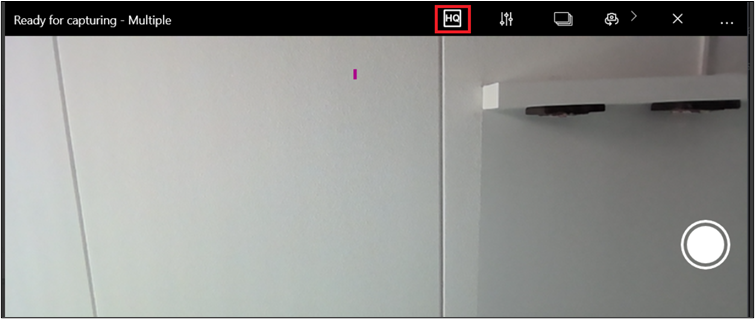
When taking photos with the Task Reporter mobile application, the camera view shows an icon [HQ] which can be pressed when high-quality images are needed. By default, this option is disabled and pictures are saved in the default quality, but once the icon has been pressed and the HQ-feature turned on, it will stay on during the entire camera session. With the HQ-feature turned on, the picture will be taken with the highest picture quality available on the device’s camera.
NOTE: This functionality will become available on Windows devices at a later stage.
Possibility to Import Several Pictures at Once
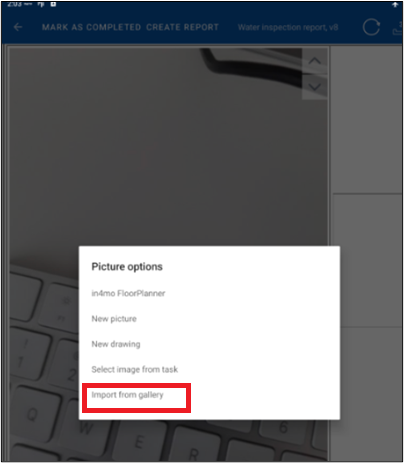
When filling in a report in Task Reporter, it is possible to import images from the device to the report using the ‘Import from gallery’ option. Previously it was possible to import only one picture at a time, but now several images can be imported at the same time. This will be a big time-saver in those situations when several images need to be added to the report from the device.
NOTE: When importing multiple pictures, it’s not possible to add captions or crop the images
Moved FloorPlanner Menu and Screenshots of Floorplan
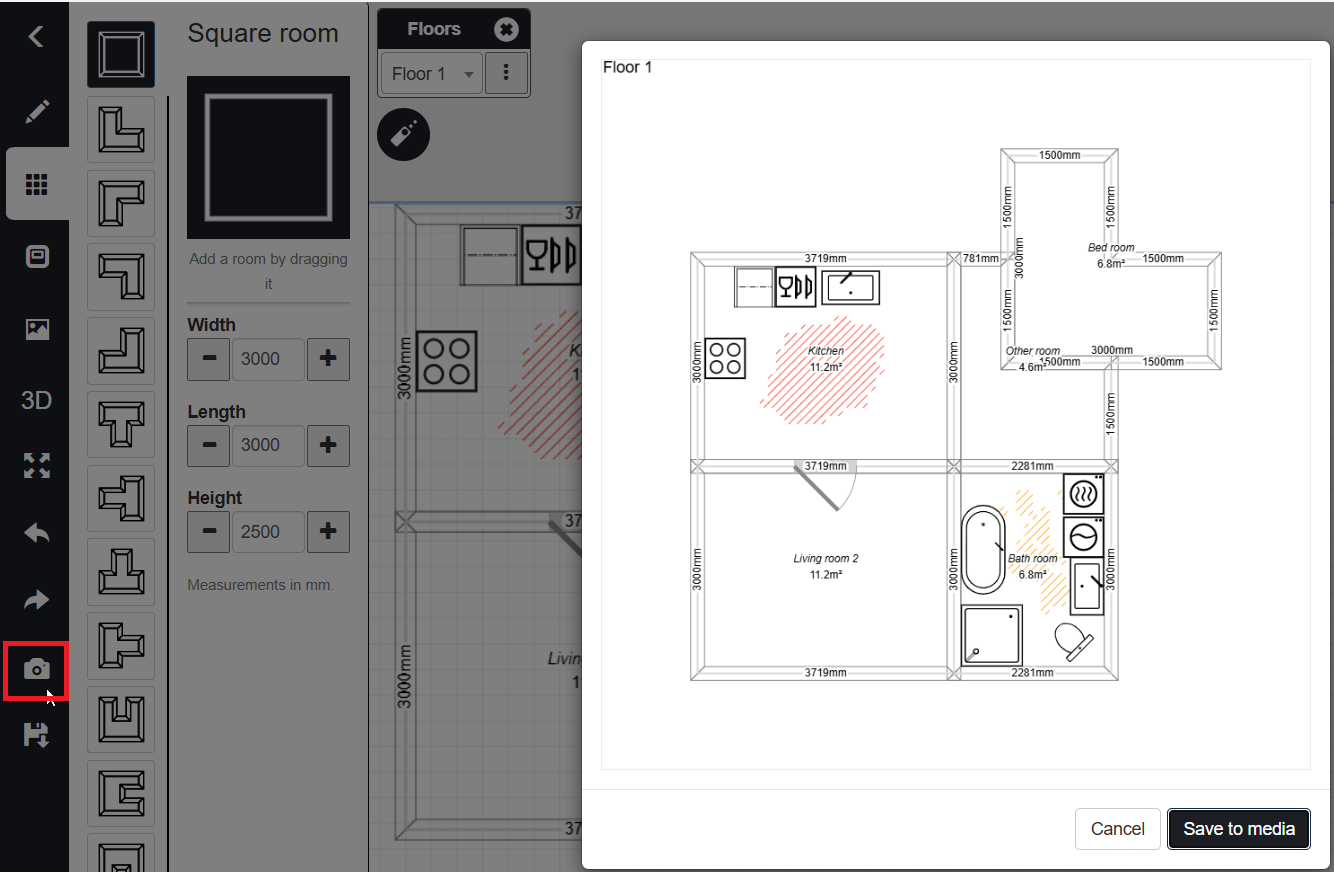
Previously it has been possible to take snapshots only of the wall- and 3D view of the FloorPlanner drawing tool, but now it is possible in the 2D view also. This is done by pressing the camera icon in the menu, which has now been moved to the left side of the screen.