in4mo Task Reporter 17.0 – Blur Faces, Add Rooms and Structures to Pictures, and More..
Mobile release 17.0 will introduce several other improvements made to the mobile application. These improvements are described below. Depending on the platform, the look of the mobile application may differ slightly from the screenshots shown here.
Face Blurring in Photos
While performing an in4mo task, it sometimes happens that someone walks into the picture frame when a photo at the site is taken, or family photos on a shelf or wall may end up in the picture by mistake. To ensure privacy and reduce the risk of pictures of people ending up in in4mo, we’re introducing a way to blur faces from photos used in the in4mo app.
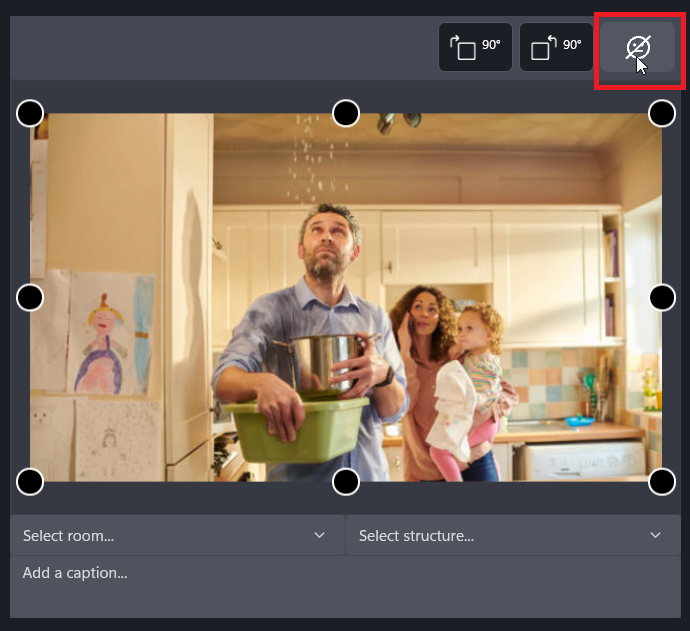
Faces will not be blurred automatically, instead the blurring will be applied to images only after the user chooses for faces to be blurred, by pressing face icon in the image preview window. The face recognition function then scans the image for faces; if one or more are found, those are blurred.
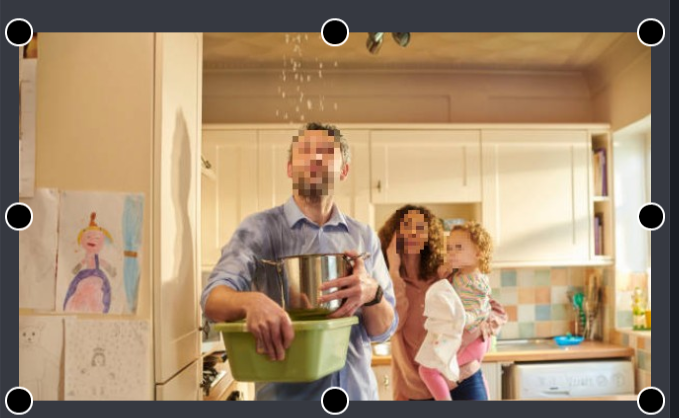
If the app does not detect images, a pop up will be shown and the decision can be made whether or not to save the image as is.
Face blurring is possible on images taken with the Task Reporter app, and when uploading images to the app from the task gallery and/or the device gallery.
NOTE 1: For images already existing in the task gallery, face blurring can be applied when uploading the image(s) to a report, but the original image in the task gallery will remain without face blur, unless the image is separately edited in the gallery itself.
NOTE 2: When uploading several images at once (from gallery) face blur cannot be applied, but individual images can be edited later.
Possibility to Select and Deselect Work Items in iCC Templates
Previously, when selecting an iCC workplan template to apply to a new workplan, it was not possible to choose what work items to add to the workplan. Instead, you had to add all the items shown in the template. Now when applying a template, you can freely select and deselect work items from the template. This makes templates more usable, ensuring that only applicable work items and tasks get added, and duplicates are avoided.
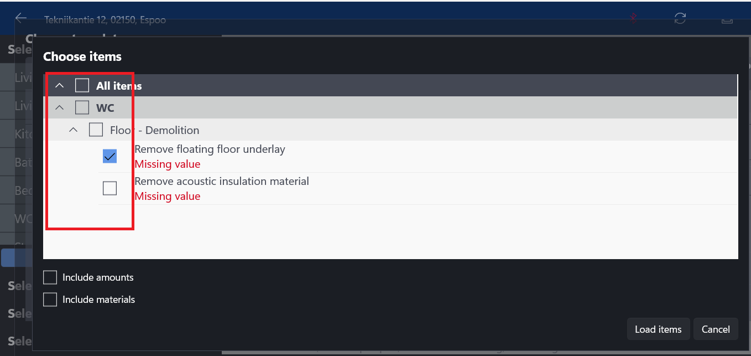
When selecting a template to apply, you will get a preview in which all the work items are pre-selected by default, but you can deselect and reselect work items as you wish. When using a template, at least one work item must be selected; if all tasks are deselected, the button to load items will be grayed out.
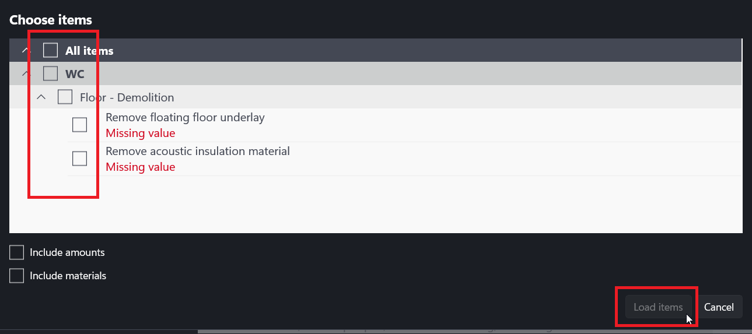
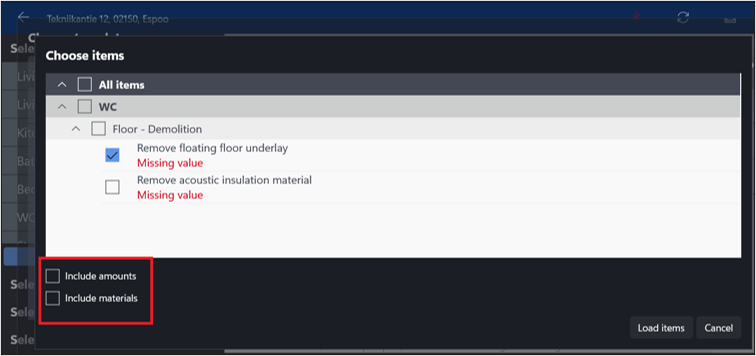
Items cannot be deleted or edited in the template view, only selected or deselected. Work items shown in the template view are shown exactly as they were when the template was saved. If the template contains work items with materials and/or amounts, those can be added to the work plan by selecting Include amounts and/or Include materials at the bottom. These options are unselected by default. If materials and/or amounts are missing from the template, those need to be manually added to the workplan after the template items have been applied.
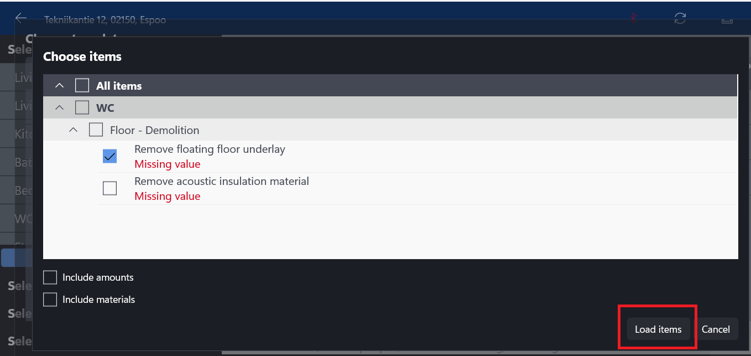
Once the work item selection is done, they are applied to the current work plan by pressing ‘Load items’ at the bottom.
Possibility to Add Room and Structure to Images
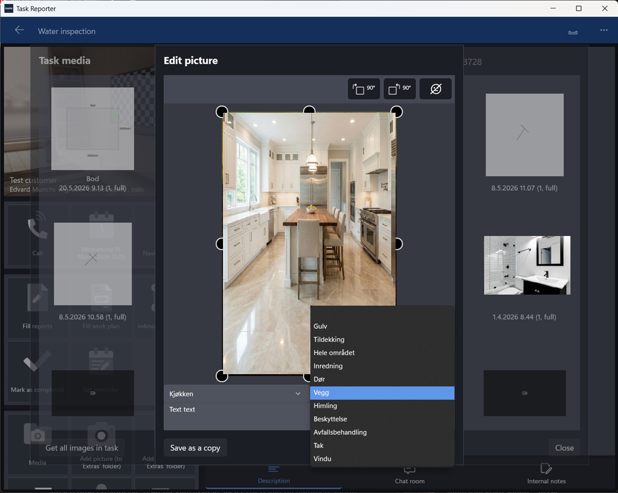
When a new image is captured in in4mo Task Reporter, and iCC is in use and rooms have been selected, the image preview will now contain a drop-down menu from which it is possible to define the room that the image is taken in, and which structure in the room the image is related to.
The drop-down menu will contain all the rooms that have been defined for the task via iCC. Once a room has been selected, it is also possible to define which structure within that room the image is related to. Selecting a structure without also selecting a room is not possible.
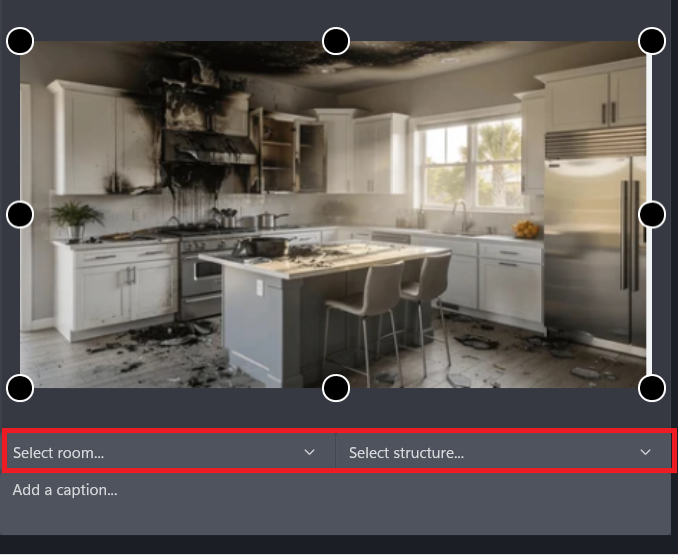
When a room (and potentially a structure) has been selected for an image, this will be shown in the image’s information.
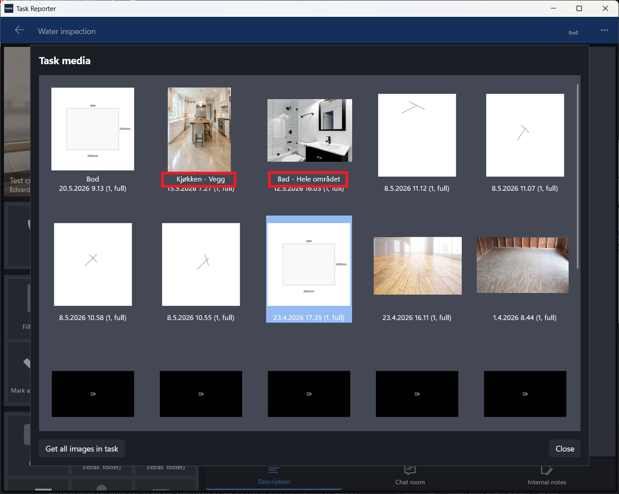
These can also be added or changed afterwards if needed, which will create a copy of the image with the new information.
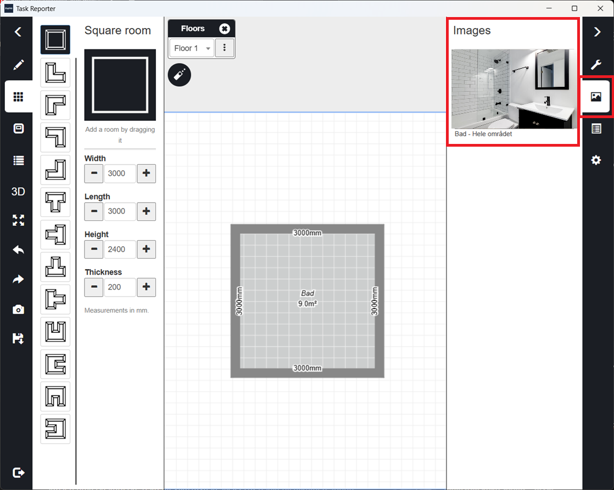
In FloorPlanner, a new image-tab on the right side will now contain images that may have been linked to a room, making it easier and faster to get an overview of the space or damage.