


in4mo Task Reporter on iOS
Here we show how the in4mo Task Reporter mobile application is used on an iOS device.
Installing the app
The in4mo application is called ‘in4mo Task Reporter’ and is found in the App Store.

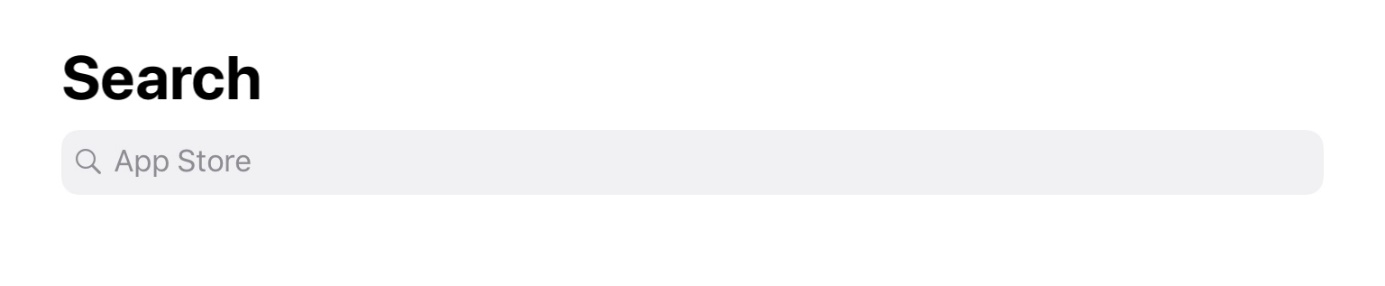
When you have opened App Store, you will find a search function on the bottom right side of the screen. Press this button:

A search field will appear on the screen. Type ‘in4mo Task Reporter’:
In the search result, you can either press the cloud symbol to download the app right away, or you can press on the app to open the app page in App Store, where you can read more information about the app, including the system requirements for the app.
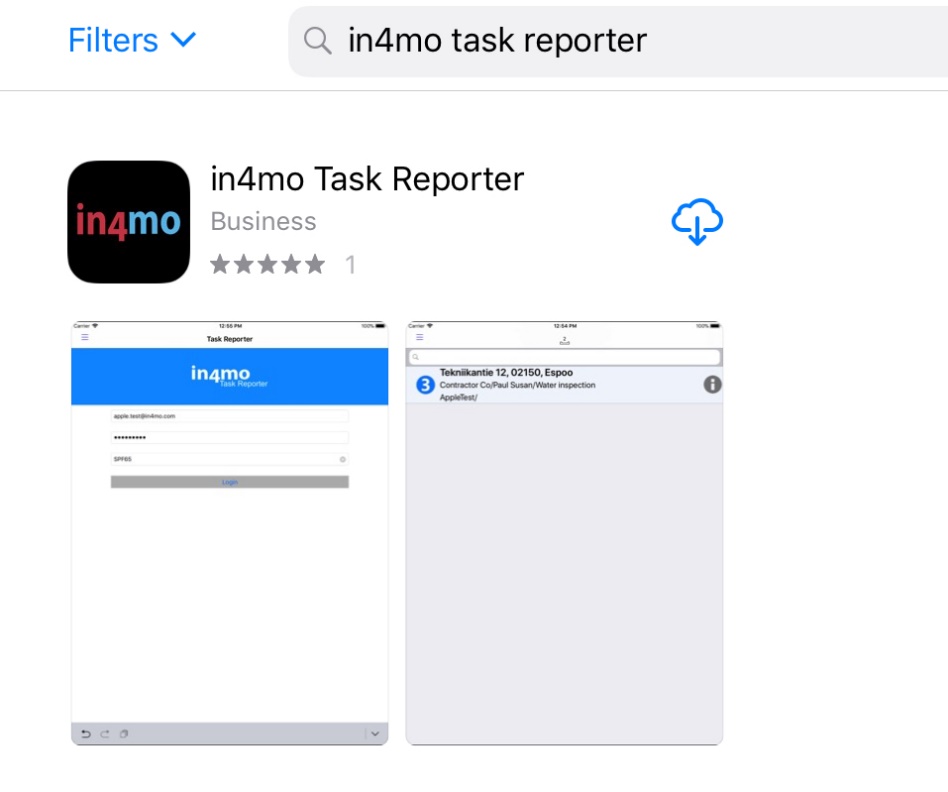
Press the cloud icon to install the app.

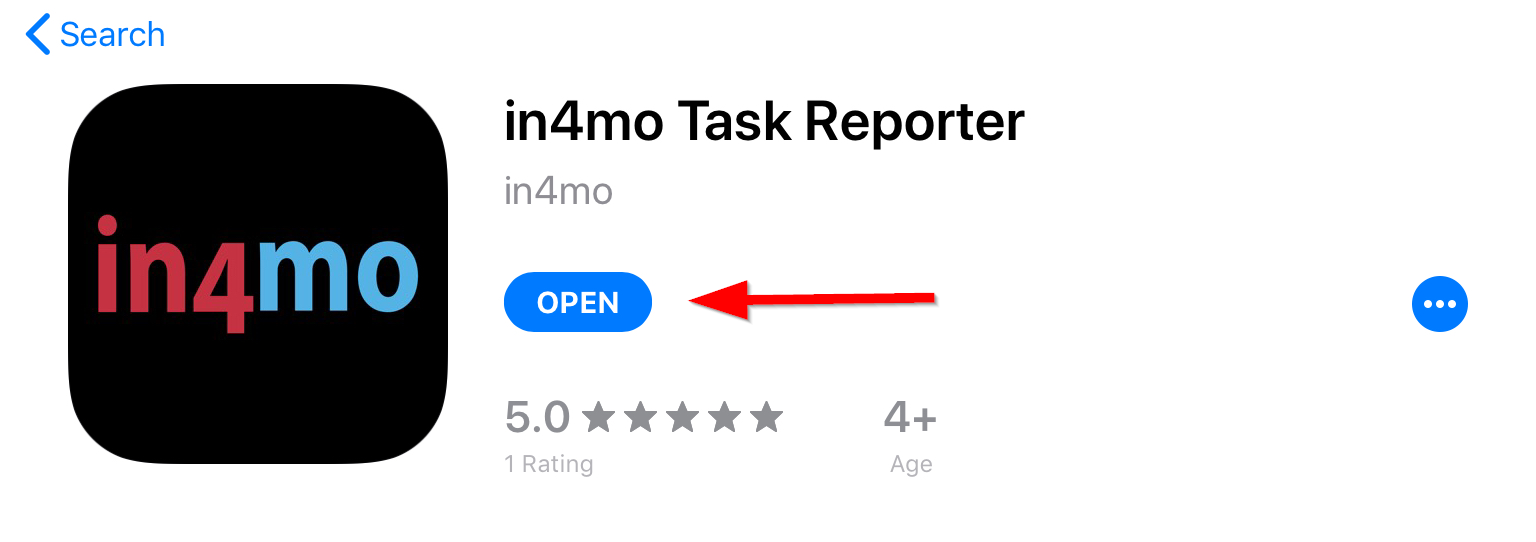
When the app has been installed the cloud button will be replaced with an ‘OPEN’ button. By pressing this button, the app will open.
Updating the app
There are different ways of updating apps on an iOS device. First of all, you can choose whether you want apps to update automatically, or only manually. This is done in the device settings, where you go to ‘iTunes and App Store’. For automatic updates, ‘Updates’ must be switched on.

There are three different approached to updating the app manually:
- Open App Store and press the profile icon in the top right corner. Under your profile you will see a list of installed apps for which updates are available. You may then choose to update individual apps, or to update all apps. By selecting an app you can see what’s new in the updated version.
- Open App Store, and search for in4mo Task Reporter (similarly to when you installed the app) and press the ‘UPDATE’ button either from the result page, or from the app page. On the app page you can also see what’s new in the updated version of the app.
- Open in4mo Task Reporter, then from the task list in the app, open the app’s menu either by pressing the menu button in the top left corner, or by swiping from the left side of the screen towards to middle. Press ‘Download latest version’ from the menu that appears. This will open in4mo Task Reporter in App Store, where you can read what’s new in the updated version of the app, and press ‘UPDATE’ to update to the latest version.

Logging in to the app
The first time you open the app you will see the log in screen:
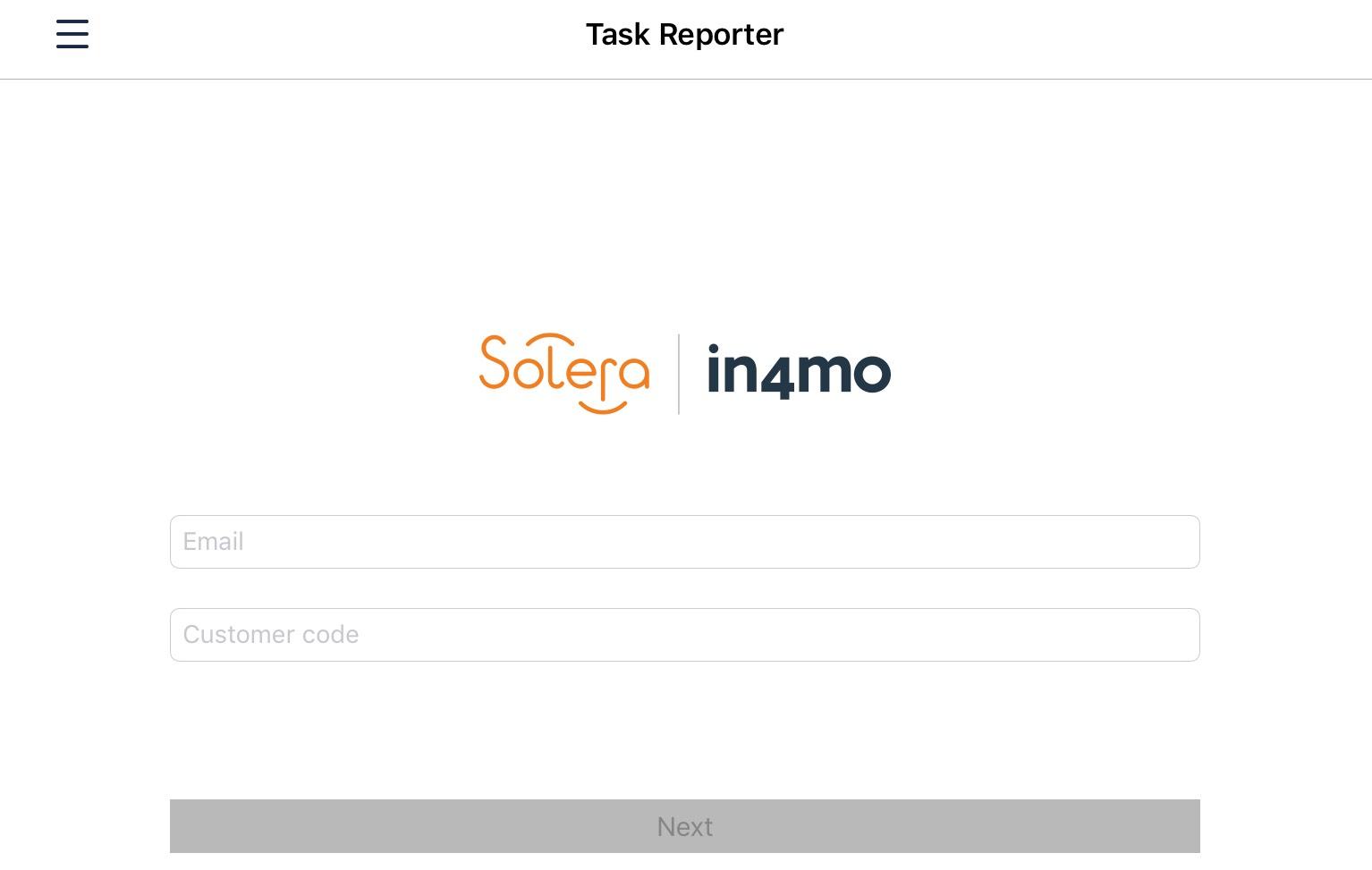
To log in, fill out your email address and the customer code to the portal you are logging in to, then on the next screen, fill out your password.
Email: This is the email address you are registered in in4mo with, i.e. the email address your user account has been added with in the portal you are logging in to.
Password: This is the password you use to log in to the system with, i.e. the same password you use when logging in to the web portal.
Customer code: In in4mo, each portal has its own customer code, which is how the system knows which portal to log in to. Each insurance company has its own customer code, while customers of in4mo Contractor has their own customer code, which gives access to all cases. The customer code for the portal you are logging in to can be found in the web portal under ‘Support’.

When you have filled out all the information, press ‘Login’.
Adding more accounts to the app
It is possible to add several accounts to the app. One person might have several accounts in in4mo; one for each insurance company the user has access to.
To add more accounts to the app, open the menu in the app by going to the task list (the page which displays your tasks/cases) and then either press the menu button in the top left corner, or swipe from the left side of the screen towards the middle.

In the menu, the active account is shown in the top left corner. Press on the account information to open the account view.
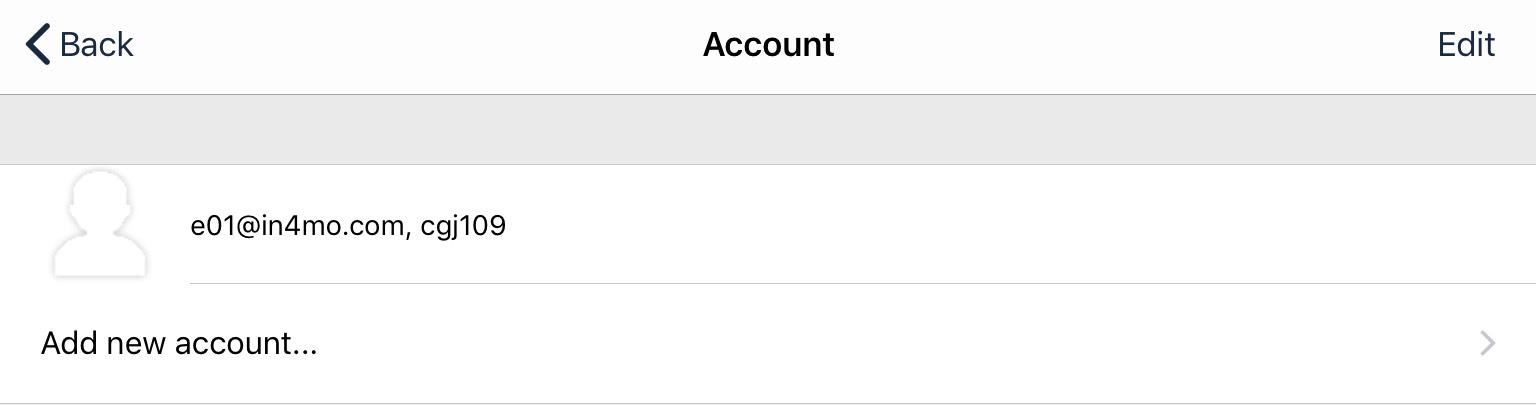
To add a new account, simply press ‘Add new account’, which will open the same log in screen as when you first logged in to the app. Once again, fill out your email address and password, which may or may not be the same as for the first account, and fill out the customer code for the portal you are adding to the app, and press the login button.
Switching accounts
When you have more than one account added to the app, one account will always be active (the active account will be displayed in the top left corner when you open the menu from the task list). The task list will show the tasks assigned to this account. To switch to another account, open the menu from the task list, and press on the active account in the top left corner to open the account view. You will now see all accounts added to the app. To change account, simply press on the account you want to open. The task list will then show the tasks of this account.
Removing accounts from the app
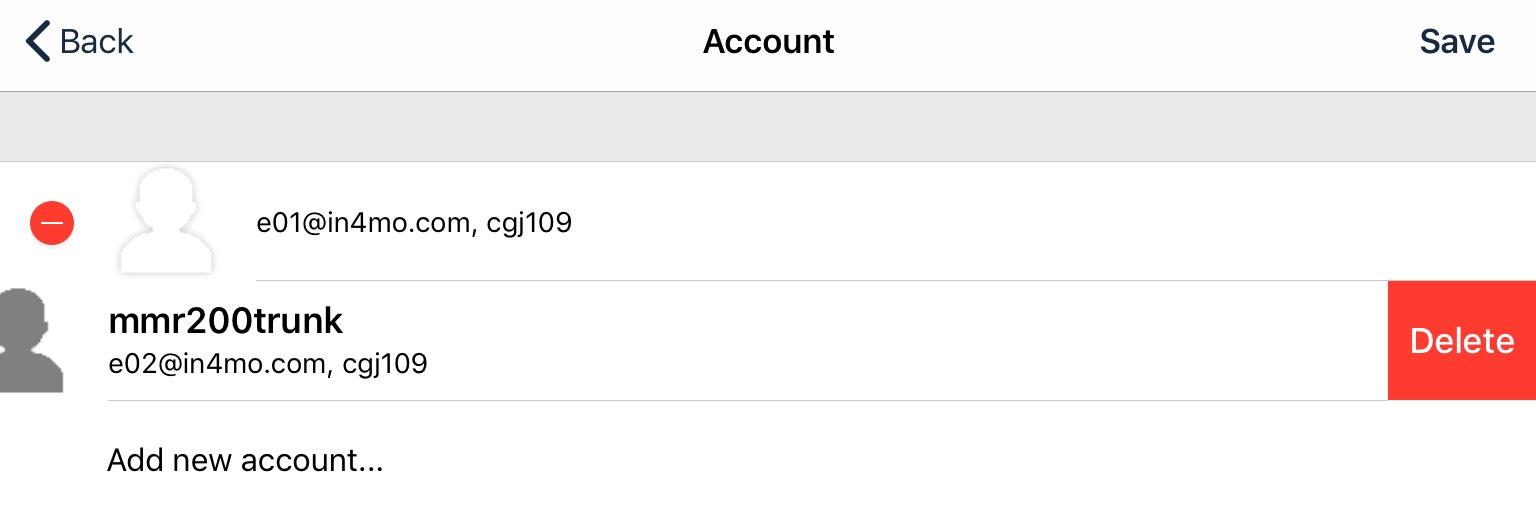
Sometimes it might be needed to remove an account from the app, for example if you no longer use a certain portal, or if there is an account from a co-worker which is no longer needed. To remove an account from the app, open the menu from the task list, and open the account view by pressing the current account in the top left corner. Then press ‘Edit from the top right corner. You will then see all the accounts that have been added to the app, with a red symbol to the left from each one. Press the red symbol of the account you wish to delete.

In order to confirm the removal of the account, you will then have to press ‘Delete’ on the right-hand side of the screen, after which you will be asked to confirm that you wish to delete the account.
Task list
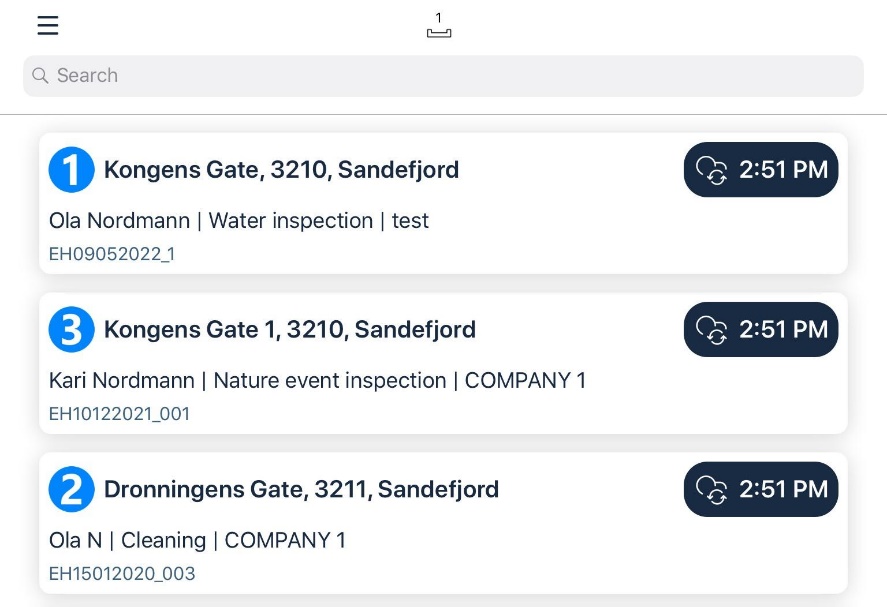
The hub of the app is the task list. This list displays active tasks assigned to this user. Inspection tasks remain in the task list also after being completed, whereas other tasks are automatically removed from the app when they are marked as completed. It is also possible to remove completed inspections from the app, which will be described later on.
Note that the list shows tasks assigned to the user, not cases, meaning that there can be more than one task from the same case showing on the list. (NOTE: Contractor customers can view this list as a case list or task list).
The task list is updated automatically at certain intervals (as defined in the app settings). It is also possible to update the task list manually by swiping downwards on the screen.
To open a task, simply press on the task you wish to open.
Underneath you will find a short description of the different elements found in the task list.
 |
The search function lets the user search for specific cases. |
 |
This icon shows how many unsent messages there are in the app. Unsent messages are incoming and outgoing messages, in other words, information being sent between the app and the server. More information about unsent messages will follow further on. |
 |
This icon indicates that there are one or more unread chat messages in the task/case. When you open a task with this icon, you will automatically be directed to the chat room of that task/case. |
 |
Indicates that there is new information in the case. |
 |
This icon shows when the task information was last updated. |
 |
This icon opens the app menu, where you can switch between accounts, access app settings, send logs to server, download the latest verserion of the app, and see information about the app. |
Task view
When you open a task, the view will be slightly different depending on whether you are using a tablet or a phone.
On a tablet you will see the available actions on the left side of the screen and case information on the right side. You can switch between case information and the chat room at the bottom right.
On a phone you will have the same action points, however you will only see the action list, case information or chat room, as opposed to a tablet where you can view two of these at a time.
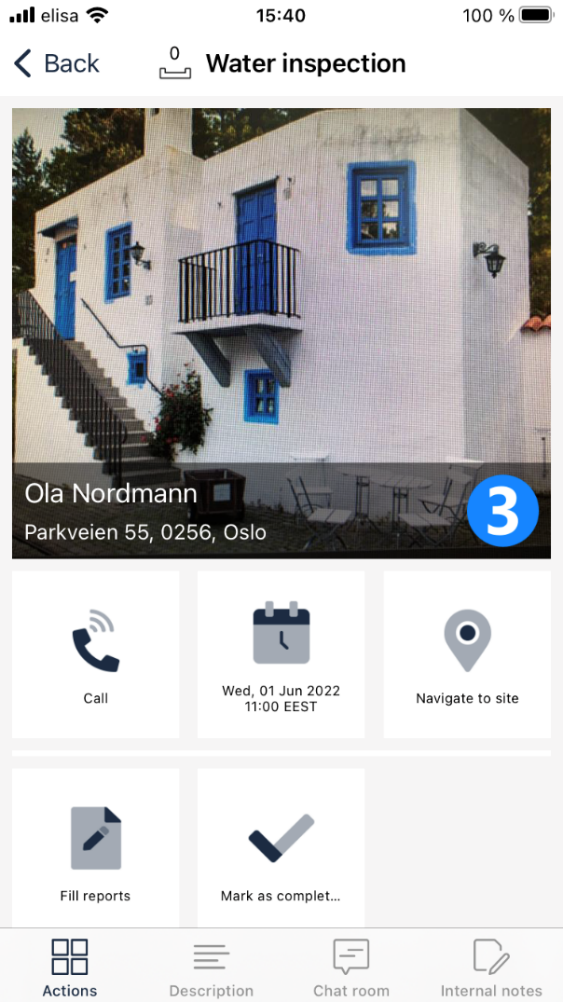

Task view on an iPad Task view on an iPhone
Report view
For the most part the functionality is the same on both phone and tablet, however there are some differences. The most important difference is how you report, especially for inspection tasks. On a tablet you open a report view, where you can fill out the report:

Report view on an iPad
On a phone however you cannot open this report view. Instead, you fill out the individual report items, then typically finish the report later from a computer.

Report view on an iPhone
Another difference between reporting from a phone and a tablet is that the in4mo FloorPlanner tool, which is used for making floorplans, is only available on tablets, as is the possibility to create and edit work plans from the app.
The action list in a task
Underneath you will see a short description of the different actions that may be available in a task. There are many different possible actions in a task. There can be some variation in what actions are available for a task, depending on the task type.
 |
When you press this button, you will see a list of contacts in a case, both contact person(s) and case handler. Choose the person you wish to call to in order to call this person. |
 |
Here you see the agreed meeting time for the task, if already set. You can press this icon to set the time, or change the time if already set. |
 |
This icon shows the address to the damage site. By pressing this icon, Maps will open with a route from your location to the damage site, which you can use when going there. |
 |
Press this icon to open the report view (tablet) or the list of report items (phone). You can then fill out the report/report items. |
 |
(Tablet only) This icon is used in portals where iCC (in4mo Cost Control) is in use. Press this icon to open the work plan, where you can manage your work plan for the case/task. |
 |
This button is used to mark the task as completed. When pressing this button, the task will move from status 3 to 4. Depending on the task type, there may be certain items that have to be filled out before you can press this button. |
 |
This button lets you view all images from the task, both pictures taken in a report and other pictures. It is also possible to make changes to pictures. |
 |
Pressing this button opens the camera on the phone. When you’ve taken a picture, you can choose to add text to the picture, discard the picture and take a new one, or send the picture to the portal. If you want to close the camera without taking or sending a picture, press the back button on your device. Pictures taken from this function will be added to the ‘Extras’ tab in the case and won’t be included in the report, although it is possible to move pictures to Multimedia from the web portal later, after which they will be included in generated reports. |
 |
By pressing this icon, the app will start recording a video. You can stop the recording by pressing the stop symbol and add text to the recording if you wish. When the recording is done you can either send it to the portal, where it can be found under Multimedia, or you can discard the recording by pressing the X icon. You also have the possibility to watch the video before you do anything else by pressing the play symbol. |
 |
By pressing this icon, the app will start recording sound. You can stop the recording by pressing the stop symbol and add text to the recording if you wish. When the recording is done you can either send it to the portal, where it can be found under Multimedia, or you can discard the recording by going back. You also have the possibility to discard the recording and start a new one by pressing the red dot, or you can listen to the recording before you do anything else by pressing the play symbol. |
 |
Pressing this icon will open a text field and the keyboard. You can then write what you want and send to the portal. Text written using this function will be added to the ‘Extras’ tab in the case and won’t be included in the report. |
 |
This button opens the device’s camera roll, allowing you to import pictures taken through other means than in in4mo. These images will be added to the extras folder for the task, and can be moved to the multimedia folder if they are meant to be included in the report. |
 |
If an inspection report has already been uploaded in the case, it is possible to download this report to read it. |
 |
Depending on the task type and status of the task, it may be possible to put the case on hold. When a case is on hold working times won’t be recorded. |
 |
By pressing this icon, you can reassign the task to another person in the company, i.e. set another person as the responsible person for the task. |
App settings
There are different settings in the app. To open the settings, go to the menu in the app by going to the task list, where you either press the menu button in the top left corner, or by swiping from the left side of the screen towards the middle. From the menu that opens on the left side of the screen, press ‘Settings’ to open the settings.
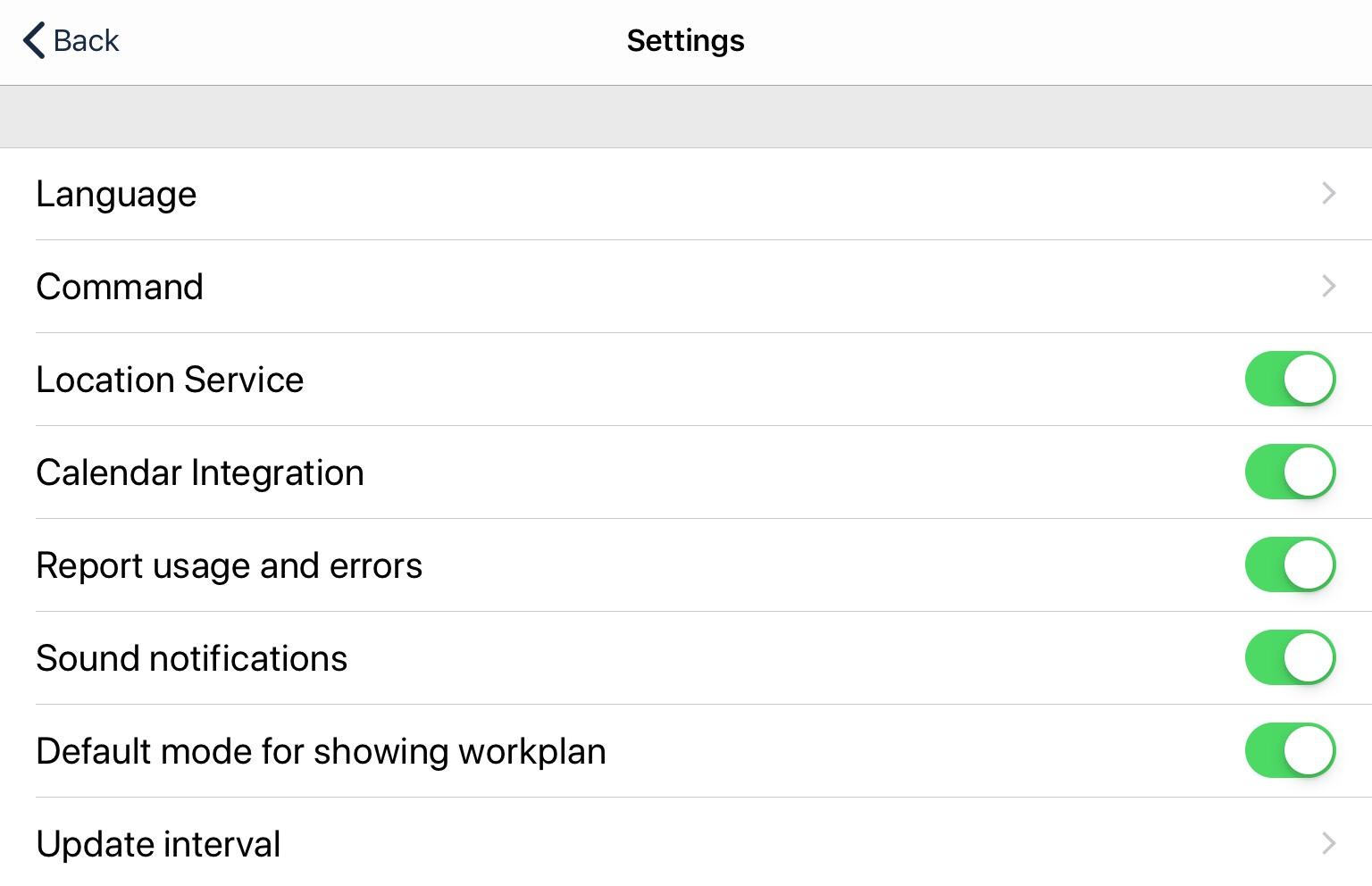
Language: Here you can choose the language of the app.
Command: Under Command you find more advanced options, which are described below.
Location Service: Here you can disable sending of the device’s location when taking site visit picture
Calendar Integration: Determines whether the app is allowed to add events to the device’s calendar.
Report usage and errors: Here you can opt-out from sending analytic events to in4mo servers.
Sound Notifications: Here you can select whether you would like the app to play a sound when there is a new notification.
Default mode for showing workplan: Determines whether you want the work plan to use a room-based or a task-based structure by default. You can change the structure also when you have the work plan open.
Update interval: Here you can choose how often the app should update automatically or switch off automatic updates.
Command settings
When you press ‘Command’ from the settings, the following settings will appear:

Restore failed message: Clicking it may help to restore lost messages if they failed to be sent. Should only be done if told so by in4mo support, in case of problems with messages sending.
Remove completed tasks: By pressing this button you will be able to remove finished inspection tasks. Inspection tasks remain in the app also after they are completed (whereas other tasks are removed when completed) until the case is closed, as in some cases there might still be a need to access them later. If you have inspections that you no longer have any need for keeping in the app, it is possible to remove them, to save space on the device. Simply select which inspections you wish to remove (selected tasks are marked on the right-hand side. Press the rubbish bin in the top right corner and press ‘Confirm’ to remove the selected task(s).

Check Outbox: Here you can see a list of all the unsent messages in the app. If there are no unsent messages, the outbox will be empty.
Problems with the app
You may at some point experience some problem with the app. Below some of the typical problems encountered in the app are described, and what you can do if you encounter any of these problems. A general advice regardless of the issue is to first check that the app is updated to the latest version, and if it isn’t, try to update it and see if that resolves the issue.
If you do not find what you are looking for in the list below, or the tips below did not solve the issue, contact your local in4mo support team.
Problems logging in
- If you have problems logging in, you are most likely trying to log in using the wrong username (email) or password, or the wrong customer code. You can control your username and password by trying to log in to the web portal. If you don’t remember your password, you can go to the log in screen of the web portal and click the “Forgot your password?” button to reset your password. When you have created a new password, you can try to log in to the app again. The customer codes you find under the support pages in the web portals.
- It is also possible that the problems are caused by having no internet connection, or by a firewall blocking in4mo. If your internet connection is working fine outside the app, you can try to switch off the Wi-Fi, so that the device is connected only to a mobile network and try again. If you were able to log in this way, it may be that your firewall is blocking in4mo.
Task(s) missing from the task list
If you have received a new task but cannot find it in the task list in the app, there can be different reasons for this.
- One of the most common reasons for this problem is that the task has been assigned to your company, but you have not been selected as responsible for the task. Open the case in the web portal and check that you are set as the responsible for the task. If you have more than one account in a portal, check also which of your accounts is set as the responsible.
- Another common reason for missing tasks is that the compensation decision has not yet been made in the case. Inspection and first aid tasks appear immediately in the app when assigned, whereas other tasks only appear after a (positive) compensation decision has been made in the case. You can check the status of the case by opening the case in the web portal.
- If you have more than one accounts on the app, check that you have the correct account open.
- Sometimes a task is on the task list, but difficult to find (due to a long task list). If you have a long task list and can’t find a certain task, try searching for the task using the search field.
- Try to update the task list manually by swiping downwards on the screen. When you do this, you should see the number of unsent messages rise in the top right corner, then after a moment decrease until it shows no number. When the unsent messages are gone, the task list is updated.
Report items are not sent from the device to the web portal, or the status for the task does not match in different places
This problem is usually caused by messages not going through, which could be caused by different things. Every action you do in a task (e.g. call customer, take picture from damage site, status update, add pictures or text in the report) creates a message, which is indicated in the centre on the top part of the screen. When filling out an inspection report in particular, there will typically be a lot of messages created, which will normally be sent to the portal quickly, however, sometimes they are not sent from the app, and this can be seen in the top right corner when the number of unsent messages gets bigger and bigger.
When you have unsent messages, and especially when you have many, it is important that you do not delete the app, as messages are saved in the app until they have been sent to the server. In other words, all unsent messages will also be deleted if you delete the app and they cannot be restored. If you are not able to resolve the problem using the tips below, contact your local in4mo support team.
- Check that the internet connection is working on your device. If you are connected to a Wi-Fi network, it is also possible that the firewall is blocking in4mo. This can be tested by disabling Wi-Fi, and being connected only to a mobile network (if the device has a sim card), and then see if the number of unsent messages starts going down. If this solves the problem, in4mo must be whitelisted in your firewall. If you are only connected to a mobile network, you could try logging in to a Wi-Fi network and see if the number of unsent messages starts to decrease.
- There could be an unsent message blocking other messages. Messages are sent in chronological order from when they are generated, and if one message for one reason or another doesn’t get sent from the app, it will block any message created after it. It is possible to remove individual unsent messages. Messages that are deleted are deleted permanently and cannot be restored. It is therefore advised to never do this without first contacting in4mo’s support, who will investigate the issue and give further instructions.
I don’t receive notifications about new messages or tasks
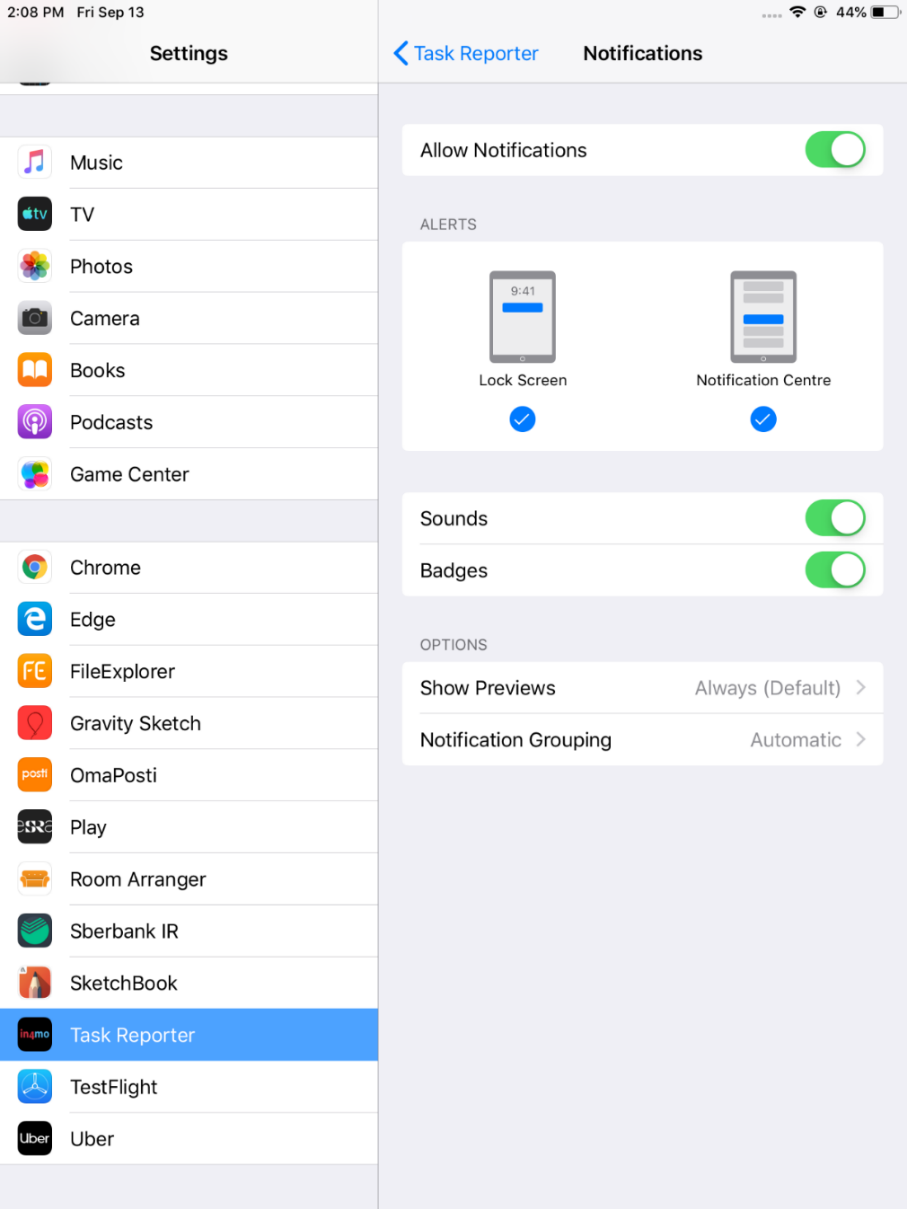
- On iOS the notification settings are found in the device settings, rather than in the app settings. So, the first thing you must do is open the device’s settings. When you have opened the settings, scroll down until you find ‘Task Reporter’, and press on the app name. Here you will see what kinds of permissions the app has been granted. It is advised to have ‘Background App Refresh’ activated, as this allows the app to receive information also when you don’t have the app open. Likewise, it is advised to give access to mobile data, for the app to update also when you don’t have access to Wi-Fi.
Settings icon - Next, press on ‘Notifications’ to get to the notification specific settings. Make sure that ‘Allow Notifications’ is activated. You can also choose how you receive notifications from the app; whether you want them to be seen when the screen is locked, or if you want them in the notification centre (or both), and whether you want sound notifications and/or badges.

- In some cases, it might be that you are not supposed to get a chat notification, even though a new message has been written in the chat of a case you are involved in. As it is possible to select who should receive a notification when sending a message, it might be that some people involved in the case won’t receive a notification about a new message if they have not been selected as a recipient for the chat.
- It is possible to manually subscribe to all chats in a case, which is done from the web portal in the case’s chat room. When subscribed to the case chat of a case, you will receive a notification about all new messages in the case, even if you have not been selected as a recipient for the message.