


Reporting in the Webportal
There might be several reasons to work on an inspection report in the web portal. This giude gives you the needed tools for preparing a site visit, continuing the report work after the visit or doing the full task at the desk.
Feature overview
All users with access to the case will be able to view the report template and the information filled. This gives easy access to view the report quickly in a clear structure without having to download the inspection report. Only the person(s) responsible for the task can fill/edit the report.
Opening the web report
 If you want to fill out or look at a previously filled report from the web portal, open the relevant task by clicking on the task on the left side of the screen (when you open a case the main inspection will be open by default), then click on the “Reports” tab. Under this tab you can see the report log (by clicking ‘Logs’), which shows all changes in the report, and “Open web report”. When you click “Open web report”, the report will open, showing previously filled information if there is any, or as a blank report if not yet filled out. The report follows the same template as on a tablet.
Filling the report
The report can be filled out and edited from the web portal as soon as the task has been assigned to a responsible (status 1). This means that the person responsible for the task can prepare e.g. the inspection, if some information already has been provided, like building information, renovations, previous damages etc. Please note that the task still must be started in the mobile application unless the role has been granted the authority to start tasks in the web.
If the responsible has filled out the report, or parts of the report, from the Task Reporter app, this information will be in the web report when opened. This makes it possible to combine reporting from the app and from the web portal, which can be useful for example for writing longer texts on a computer instead of on the tablet. Items filled out via the web report are added to the Multimedia tab just like items filled out on the app.
Mandatory fields are marked in the report template with a red icon, that changes to green when filled out.
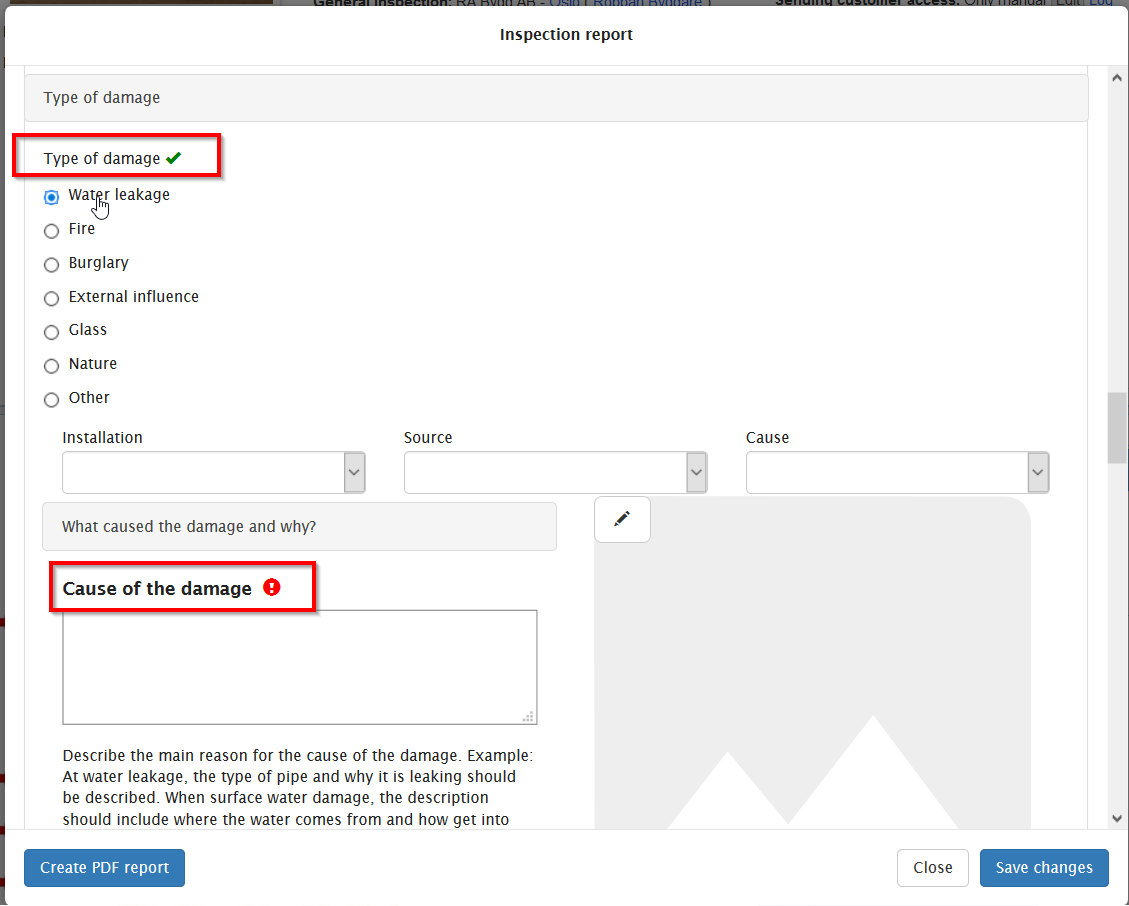
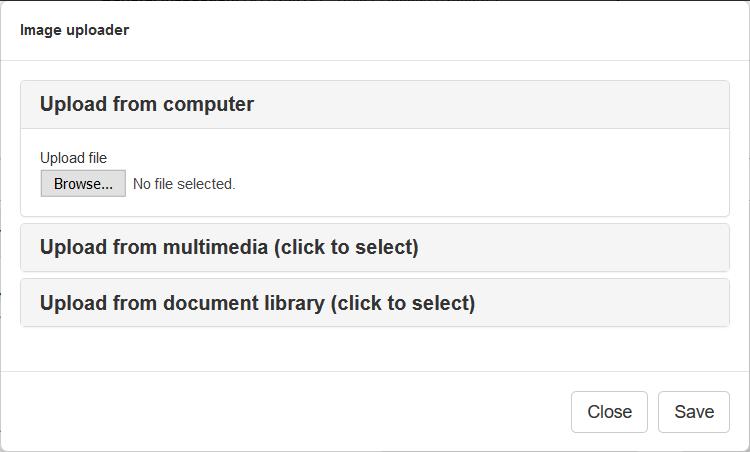
In the web report it is possible to add pictures from several sources:
- From the PC
- From the multimedia folder in the case
- From the document library in the case
When done
When done editing, make sure to save the ch anges by clicking “Save changes” on the bottom right before closing the window. To close the report, click “Close”. When closing the report, you will be prompted to confirm that you wish to close the report, and informed that unsaved text will be lost. If you have already saved all changes, you can close the report, if you have forgotten to save all changes, you can still go back and save before closing the report.
To the bottom left there’s a button called “Create PDF report”. When you click this button, the report in its current form will be added to the document library in the case as a PDF. This button becomes available once the task reaches status 3. Note that as is the case with reports created from the Task Reporter app, there may be some fields that should and will not be included in the report file that is added to the document library.