


in4mo Remote Video For Partner Users
Here we go through the steps to make a video call with in4mo Remote Video (iRV)
Overview
in4mo Remote Video makes it possible to do inspections without visiting the damage site through video calls. Here we explain how the solution works, from how you send an invitation, how to join a video call, to how the video call works and how to access multimedia and cases from the web portal.
Note that whether you have full access to the service or a read-only access depends on your role in a case as well as the settings used in each individual web portal.
Accessing the Service
When opening a case in in4mo Building Claims and the service is enabled there is a menu option for the Remote Video Service in the left side menu.
Clicking the option will open the window below. If you only have read access in the case you will not see the Create New Invitation button.
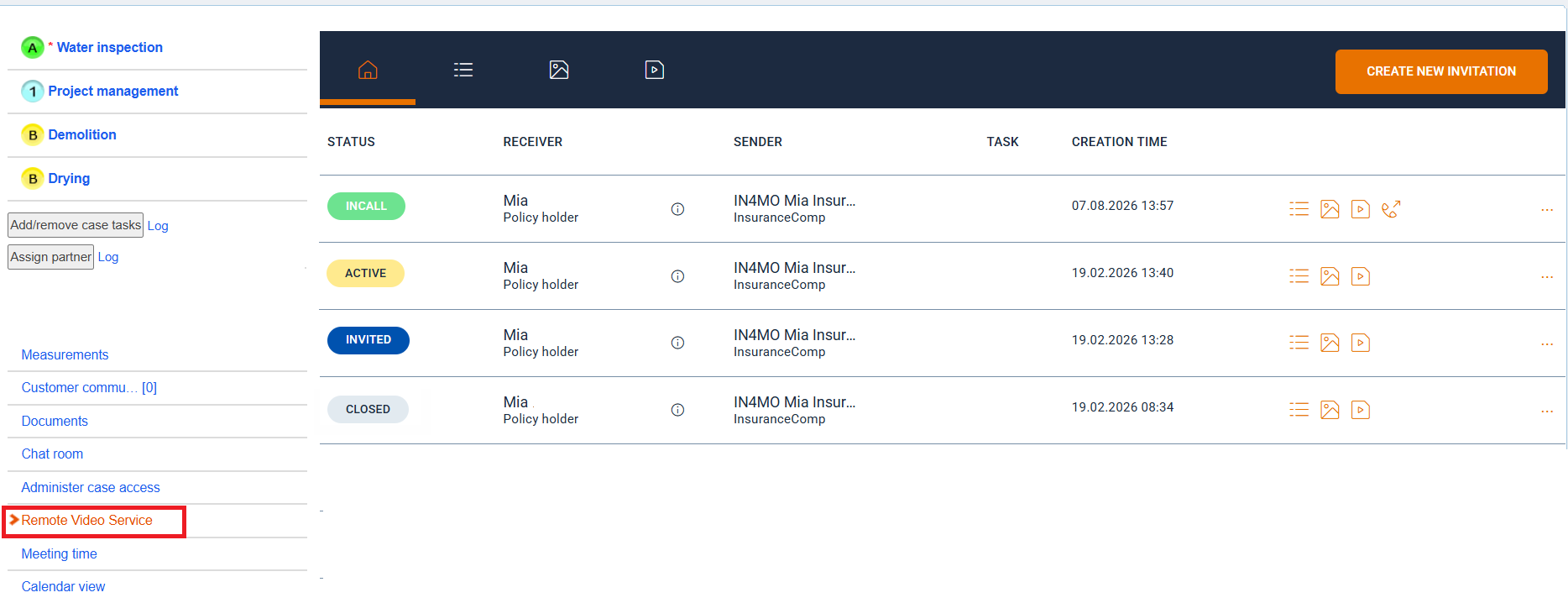
The main view shows a list of existing invites, along with the status for each invite, the name of the person who has received the invitation to the video call with information about phone number or email address the invite was sent to, who sent the invite, when the invite was created, as well as case action buttons, which will be explained further down.
In the top menu of the page there are buttons to quickly access all logs and content for the video calls in the case.
When selecting the log tab, the event logs for all invites will be listed. The logs are shown per call with the possibility to expand and collapse the events for a specific invite.
When selecting the picture tab, the images captured for all calls in the case will be listed. The images are shown per call with the possibility to expand and collapse the items for a specific invite. Clicking on an item will open the picture in a new window.
When selecting the video tab, the videos captured for all calls in the case will be listed. The videos are shown per call with the possibility to expand and collapse the items for a specific invite. Clicking on an item will open the video in a new window.
Below you can see what the different statuses for the invites mean:

The invitation has been sent, but not yet been used

The claimant is in the call, and you may join the call if you have not already done so

The call is ongoing

The invitation is no longer active
On the right side of the invite details action buttons are available. If you only have read access the three last buttons will not be shown.

Click the above button to see the event log for the specific invite

Click the above button to see all images captures during the call

Click the above button to see all videos captured during the call

Click the above button to join the call. This button becomes available once the invited person has joined the call.

Click the above button to get extra options. The extra options are to close the invite and to resend an invite.
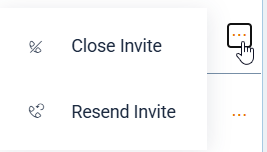
Closing the invite means the invite will no longer be active.
Resending the invite prompts the system to send another invite to the invited party through the same invitation method, i.e. SMS or email.
Sending Invitations
In order to create a new invitation, press the CREATE NEW INVITATION button, found in the top right corner.

The invitation view opens where you must select the who to invite (a contact person or a task responsible) and choose the method for sending the invite.
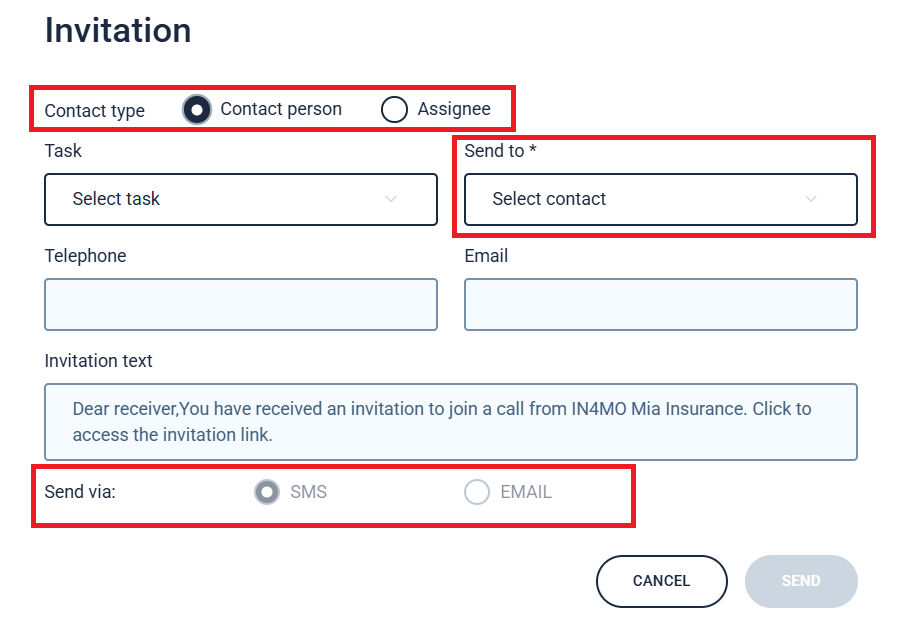
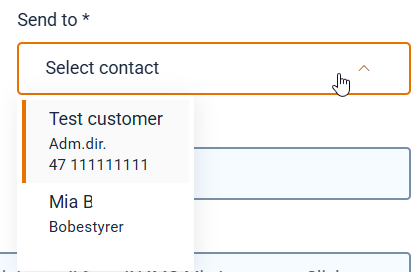
When selecting the receiver of the invite, all contact persons listed in the case information are available in the drop-down menu. Mark the wanted person and their contact details will be populated in the invite view.
It is possible to select if the invite should be sent via email or SMS, depending on the details of the selected contact. If only the person’s phone number is available, it will only be possible to select SMS and vice versa.
Depending on the role you have and the purpose of the video call it is possible to select the task it refers to. In the dropdown all tasks available in the case are listed and depending on the selection the captured images during the call will be added to the Multimedia of that task after the call. This makes it easy to use the images for example when filling in an inspection report. If no task is selected the images will be added to the Documents folder of the case.
When you are ready, press the SEND button to send the invitation. In the Calls management view, there will now be a new line with the status INVITED.
Making a Video Call
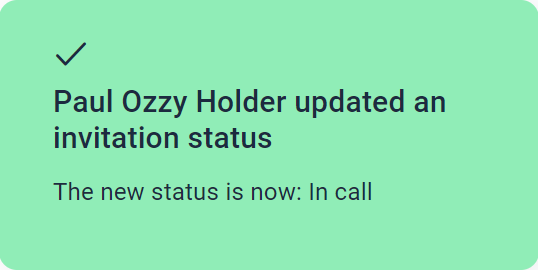
When the contact person opens the invitation, they have received and clicks the link, the status for the case will go from INVITED to IN CALL. There will also be a notification at the bottom right side of the screen informing that the invited person has opened the link. This notification disappears automatically after a few seconds.
When the invited person has started a call, you as the inspector can join the call from your side by clicking the JOIN CALL icon.
A new window or tab will open in your browser where you can see the invited person’s point of view, that is, where the invited party is filming.

During a call, you will have several options available, each represented by an icon.
Below you will see a short explanation of what the different icons do:
 |
Click this button to take a screenshot of the current view from the other party’s camera. |
 |
Click this button to start a video recording. The icon will be displayed in red when video is being recorded. To stop the recording, simply click the icon again. |
 |
Click this button to end the call. The person on the other end also has the possibility to end the call. |
 |
Click this button to mute/unmute your microphone. Note that you may have to give access to microphone in order to be able to use it during the video inspection. |
 |
Click this button to open more options on the right side of the screen. These extra are explained below. |
 |
Click this button to toggle between cameras, i.e. between front and back camera. When you click this button, the other person will receive a request to allow this action. The other person will also have the option to toggle between cameras themselves. |
 |
When you click this button, a cursor will appear for both you and the other person. This cursor can then be used to highlight things on the screen, which can be useful if you for example want to highlight to the person holding the camera where you want them to focus the camera. |
 |
Click this button to open the chat. Here you can send messages to the other person, as well as reading messages they have sent you. |
 |
Click this button to view screenshots. The screenshots appear on the left side of the screen, and you can click on a screenshot to make it bigger. |
NOTE: After the call is ended remember to close the call tab/window.
Accessing Multimedia After an Ended Call
After an ended call, you can view the content from the call either in the video feature’s main view or by opening the Multimedia tab in the associated task, or the case’s Documents -file if no task was selected for the invite.
Pictures and videos in Calls Management
After the call is ended click the icon for pictures or videos to get a list of the items captured during the call. Clicking on a specific item will open the image or video in a separate window.
Pictures and videos can be saved to the PC by right-clicking on the image.
Pictures in Multimedia
If a task was selected when the invite was created pictures will automatically be added to the Multimedia in the specific task. This means for example that they easily can be added to inspection reports. If many images are captured it is possible to move some to the Extra folder if not needed.
Pictures in Documents
If no task was selected when the invite was created all pictures will be added to the document folder in the case. They will be added as Own, meaning they are only available for the insurance company and the partner company users that have made the call. It is possible to make them available for all and also share them with the customer using the in4mo Customer page.