Raw Cases
The raw cases feature gives insurance companies the possibility to give select partners the possibility to create preliminary cases, which can later be merged with cases created by the insurance companies, or transferred into normal cases. This can be a useful tool for handling cases outside of normal business hours or during nature events that cause a large influx of cases.
Overview
With the raw case functionality, insurance companies can give their partners the possibility to create cases. This right is granted on office level, meaning that it’s possible to define whether particular offices should have the right to create cases, and if so, when they have the right to do so, e.g. only outside the defined office hours. Cases that partners create are known as raw cases and will automatically be available to the partner creating it.
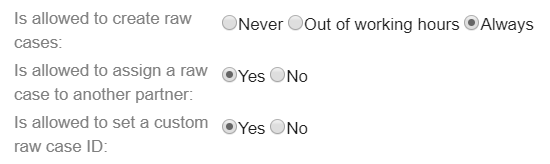
It is also possible to give partners the right to assign raw cases to other partners and to define the case ID for the raw cases. These additional rights can only be given if the enhanced raw case functionality is activated in the portal.
How to Give a Partner the Right to Create Raw Cases
Rights to creating raw cases is given on office level, meaning that the right is granted for a specific office, rather than for the entire partner. To give or remove the right to create raw cases, go to Company admin -> Offices. From the office list, find the office you are looking for, then click on the name of the office, found under the column Name.

The Office settings for the selected office will open in a pop-up. Under the first category (Settings), you will find the setting Is allowed to create raw cases.
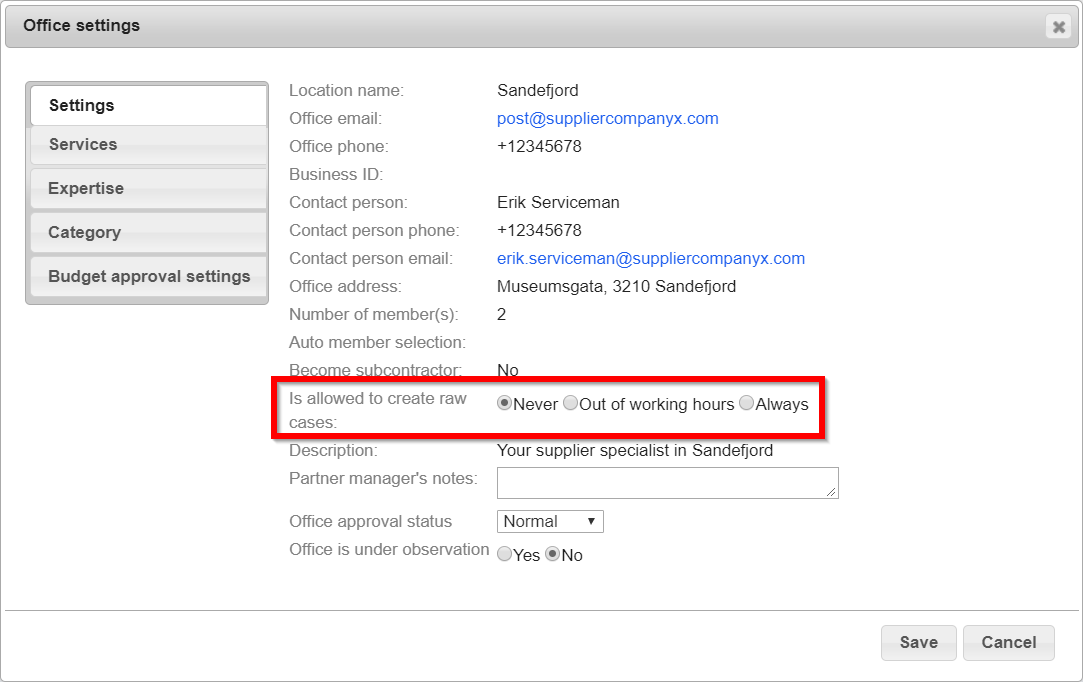
The options here are Never, Out of working hours and Always. Never will be selected for all offices by default, meaning that no offices are able to create raw cases automatically. When an office has been given permission to create raw cases, members from this office are able to create raw cases, either outside of the working hours defined in the portal, or always. Remember to click Save when you have made changes.
As previously mentioned, it is possible to give an office access to create raw cases only outside of the working hours defined in the portal. The office hours are defined under Company admin -> Company -> Office hours. In the example below, the office hours are set from 08:00 to 16:00. This means that on weekdays from 8:00 to 16:00, offices which have been given permission to create raw cases outside of working hours won’t have access to create raw cases, whereas before 8:00 or after 16:00, as well as during weekends and holidays, they are able to create raw cases.

Enhanced Raw Case Feature
If the enhanced raw case functionality is activated in the portal, it is possible to give partners more authority when creating raw cases. Partners can be given permission to assign tasks in raw cases to other partners, or to define the case ID for the raw case.
How to Create a Raw Case
When a user from an office which has been given the right to create raw cases (and the time is outside of the defined working hours, if the rights to create raw cases is given only outside of the working hours) opens the case list, the user will find a button called + New raw case on the top right corner of the case list.

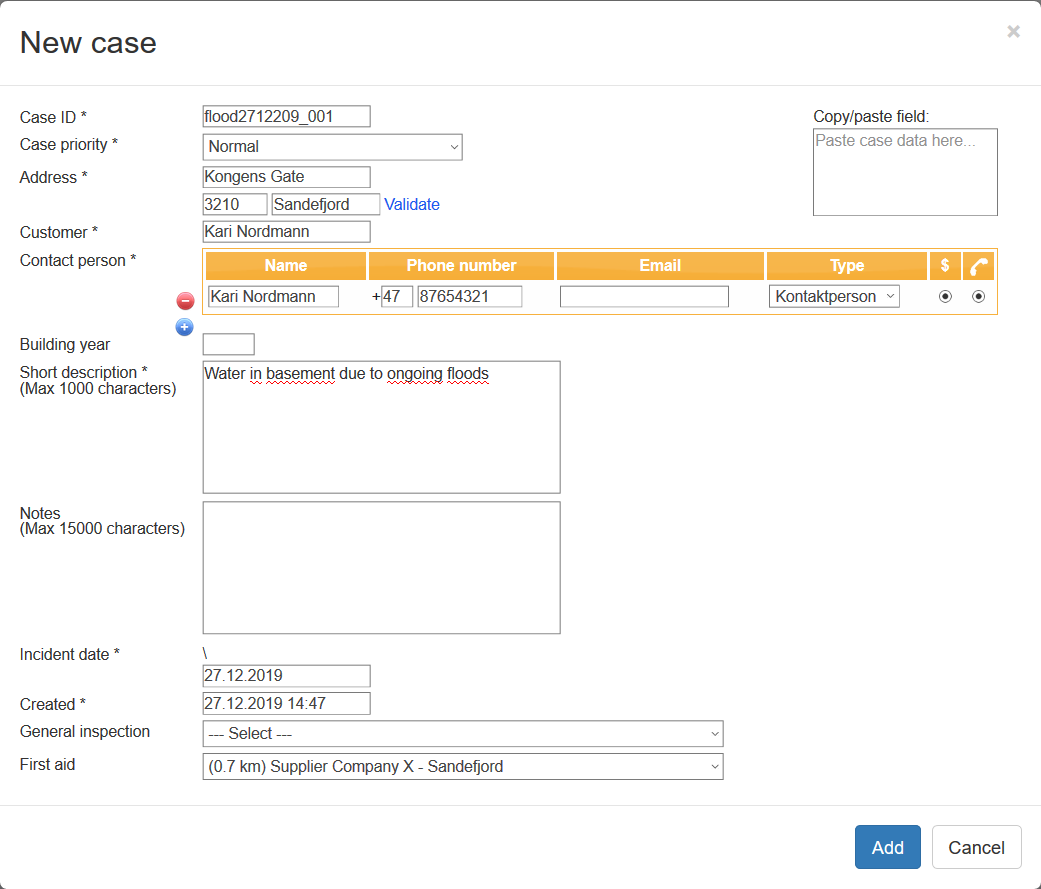
When clicking this button, a new window appears where the user will fill out information about the case. Depending on portal settings, the first field, Case ID, may or may not be visible. It is possible to assign tasks to an office already when creating the case, however you are not required to do so, and it is also possible to assign tasks after the case has been created.
Fields that are mandatory to fill out are marked with an asterisk (*) icon, other fields are optional. Once you are ready, click Add to add the case.
The newly created case is added to the case list of the company that created the case with the word Raw in its ID. The case can be opened in the same way as other cases, by clicking on it. Once you have opened the case you can assign the first aid task (and/or inspection task) and proceed as normal. First aid tasks do not require a budget, meaning that you can start reporting at any time.
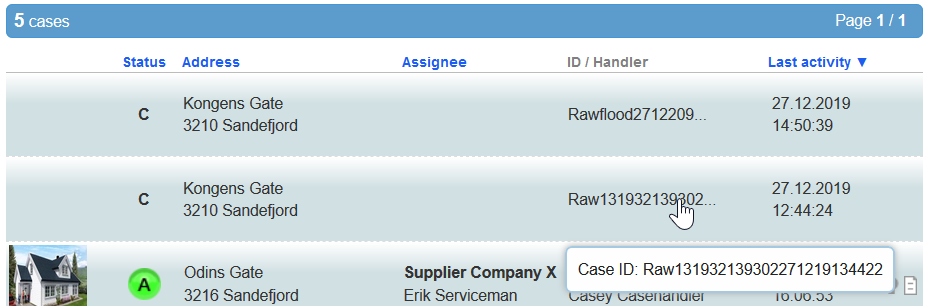
Handling Raw Cases
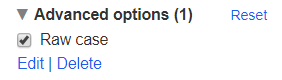
When there are raw cases in the portal, users from the insurance company will in the case list and in the dashboard view see the message X case(s) need to be associated. When clicking this text, a filter called Raw case is added to the current filter selection under the category Advanced options. When this filter is activated only raw cases will be shown in the case list.

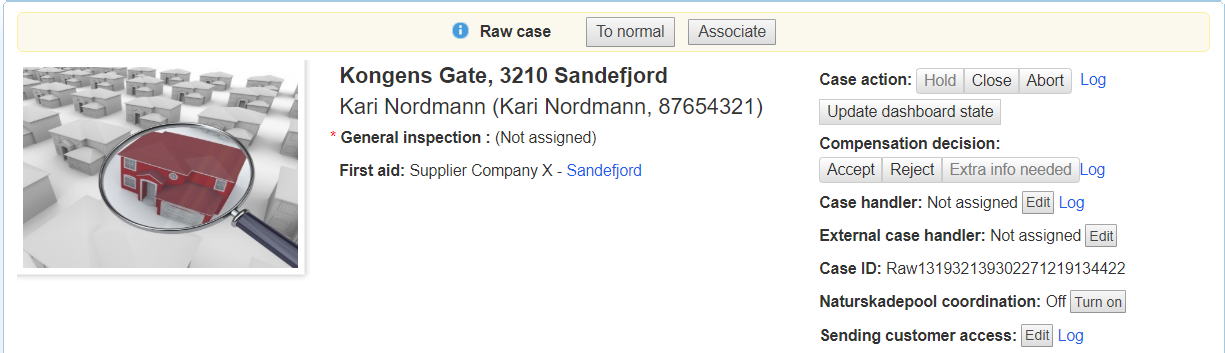
When opening a raw case, the yellow banner on top of the case informing about any necessary action points, will inform that the case is a raw case, as well as giving two options: To normal and Associate.
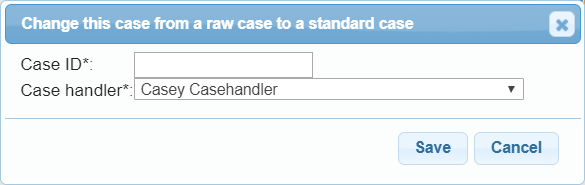
If To normal is pressed, the user will have to input a Case ID for the case, as well as select a case handler for the case. When this is done, and the user has clicked Save, the case is converted into a normal case, meaning that the case is similar to other cases created by the insurance company.
If Associate is pressed, the user will be able to link the raw case to another case that already exists in the portal.
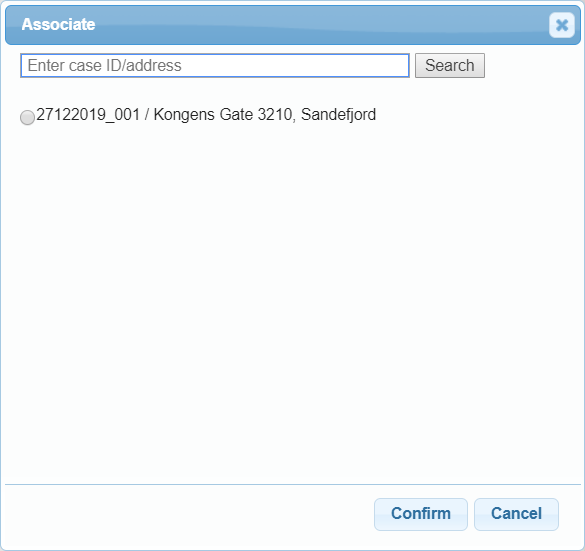
When you associate the raw case with another case, the raw case will be aborted, while the contents of the raw case are imported into the other case, meaning that for example the first aid task from the raw case, along with any reported multimedia, are imported into the other case. In the new case there will be a link to the aborted raw case, found in the Grand log.
Raw Case Report
For insurance companies, there is a raw case report available to users with authority level 6, which shows statistics for raw cases created. The report is found under Company admin -> Reports, and is generated on a weekly or monthly basis, depending on portal settings.